> For the complete documentation index, see [llms.txt](https://help.blings.io/llms.txt). Markdown versions of documentation pages are available by appending `.md` to page URLs; this page is available as [Markdown](https://help.blings.io/apps/blings-platform/ai-optimization.md).
# AI Optimization
Define optimization targets, variants, and conversion buttons for AI Optimization
AI Optimization helps an MP5 project compare variants and route traffic toward the option that performs better against the selected goal. The feature is most useful when the project has a clear business target, measurable viewer actions, and a habit of reviewing results after launch.
Use this guide when you need to define the optimization target, create variants in Platform or Studio, choose which button counts as a conversion, and keep improving the project after the first results arrive.
## What the Target Means
The target is the success signal AI Optimization should improve. It tells Platform which viewer behavior matters most when variants are compared.
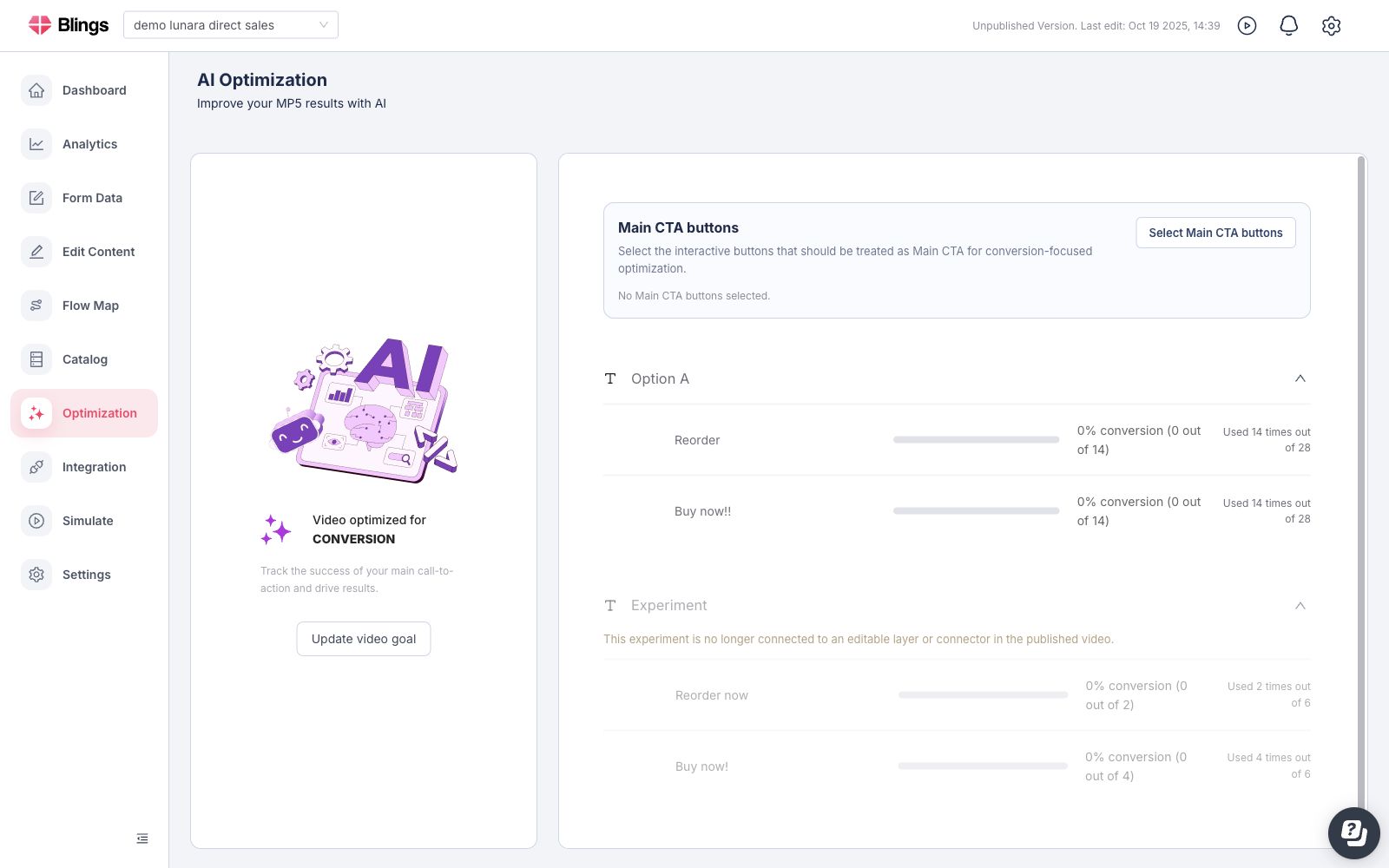
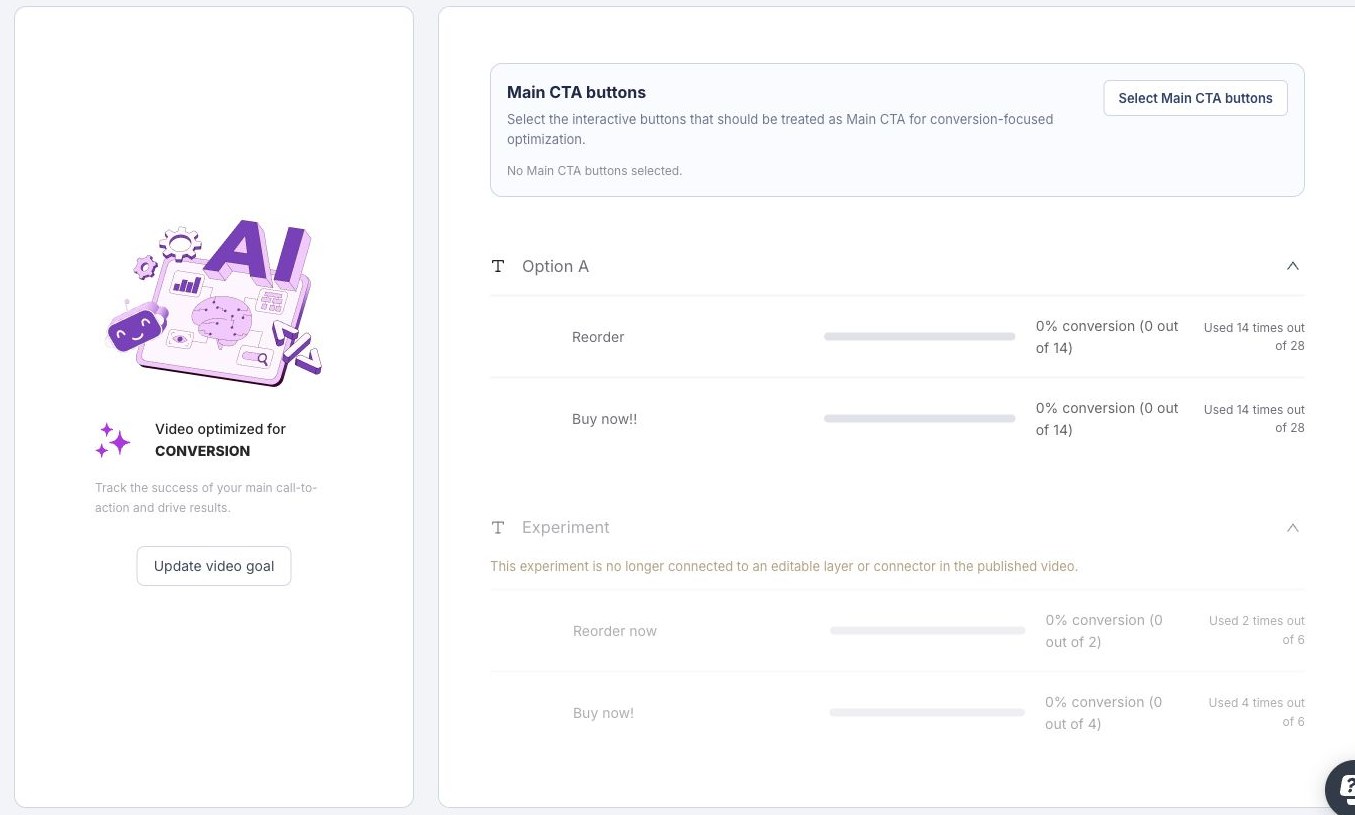
For a conversion-focused project, the target is usually the main call-to-action. In Platform, this appears as **Video optimized for CONVERSION**. Conversion does not mean every interaction in the MP5 is equally important. It means the selected Main CTA buttons are treated as the success actions for the optimization.
Choose one target for each optimization cycle. A single project can still track generated videos, plays, engagement, conversion, and watch time, but AI Optimization needs one primary signal so the variant comparison is not confused.
{% hint style="info" %}
Use supporting metrics to diagnose the result. For example, a variant can have high conversion among a small number of viewers, while another variant may drive more plays or better watch time. The target chooses the winning signal; the other metrics explain why it is winning or losing.
{% endhint %}
## Optimization Goal Options
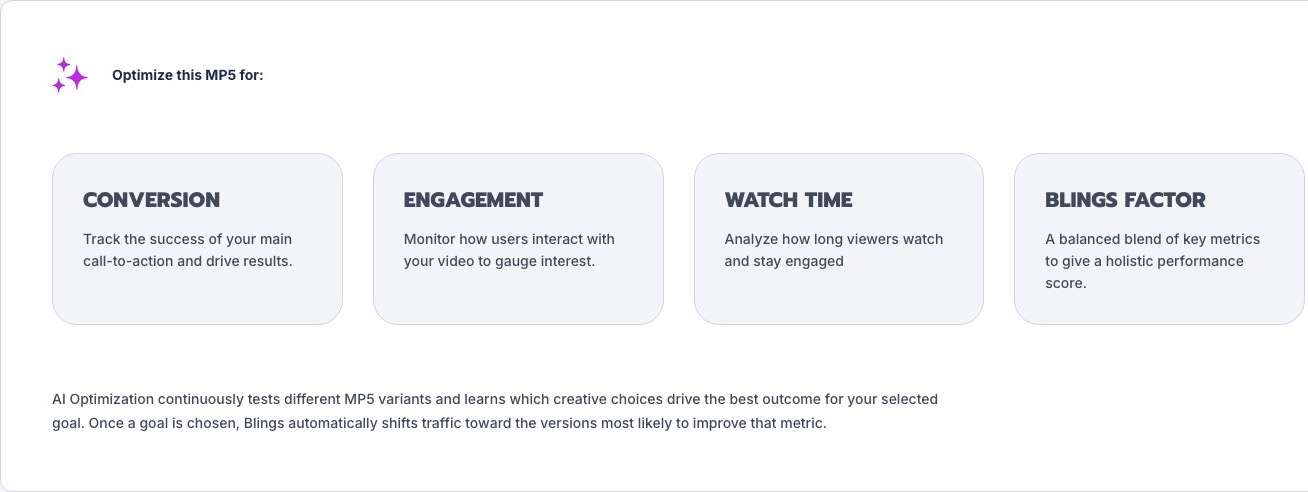
When the goal is changed, Platform shows the available optimization options. Each option tells AI Optimization which result should be treated as the primary success signal.
| Option | What it optimizes for | Use it when |
| ----------------- | ------------------------------------------------ | -------------------------------------------------------------------------------------------------------------------------- |
| **Conversion** | Main call-to-action success. | The campaign has one or more buttons that represent the desired outcome, such as reorder, buy, book, sign up, or continue. |
| **Engagement** | Viewer interaction with the MP5. | The goal is to increase meaningful interaction, such as clicks, choices, branches, or other active viewer behavior. |
| **Watch Time** | How long viewers stay with the MP5. | The experience needs stronger viewing depth, story completion, education, or message retention before a later action. |
| **Blings Factor** | A balanced score across key performance signals. | The project needs a broader performance view instead of optimizing toward one narrow metric. |
Choose the option that matches the next business decision. If the team needs more purchases or bookings, choose **Conversion**. If viewers are not reaching the CTA, **Watch Time** or **Engagement** may be the better first optimization target.
## Define the Target in Platform
Use Platform when the goal is an operational project setting rather than a layer-level creative change.
{% stepper %}
{% step %}
### Open Optimization
In Platform, open the project and select **Optimization** from the project navigation.
{% endstep %}
{% step %}
### Review the Current Goal
Read the goal card before changing anything. The example project is optimized for **Conversion**, so Platform expects selected CTA buttons to define the success action.
{% endstep %}
{% step %}
### Update the Goal When the Business Target Changes
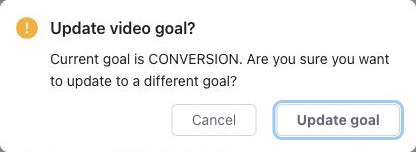
Click **Update video goal** only when the project should optimize for a different primary outcome. Platform asks for confirmation before changing an existing goal.
{% endstep %}
{% step %}
### Select the New Optimization Option
Choose **Conversion**, **Engagement**, **Watch Time**, or **Blings Factor** based on the outcome the next optimization cycle should improve.
{% endstep %}
{% step %}
### Keep Goal Changes Deliberate
Avoid changing the goal during an active review window unless the current goal is wrong. Changing the target changes what success means, so results before and after the change should not be treated as one continuous test.
{% endstep %}
{% endstepper %}
## Create Variants in Platform or Studio
Variants can be created in either Platform or Studio, depending on what you are changing. Platform is the fastest path for common Edit Content values. Studio is the broader setup surface for connector-level logic and interactive behavior.
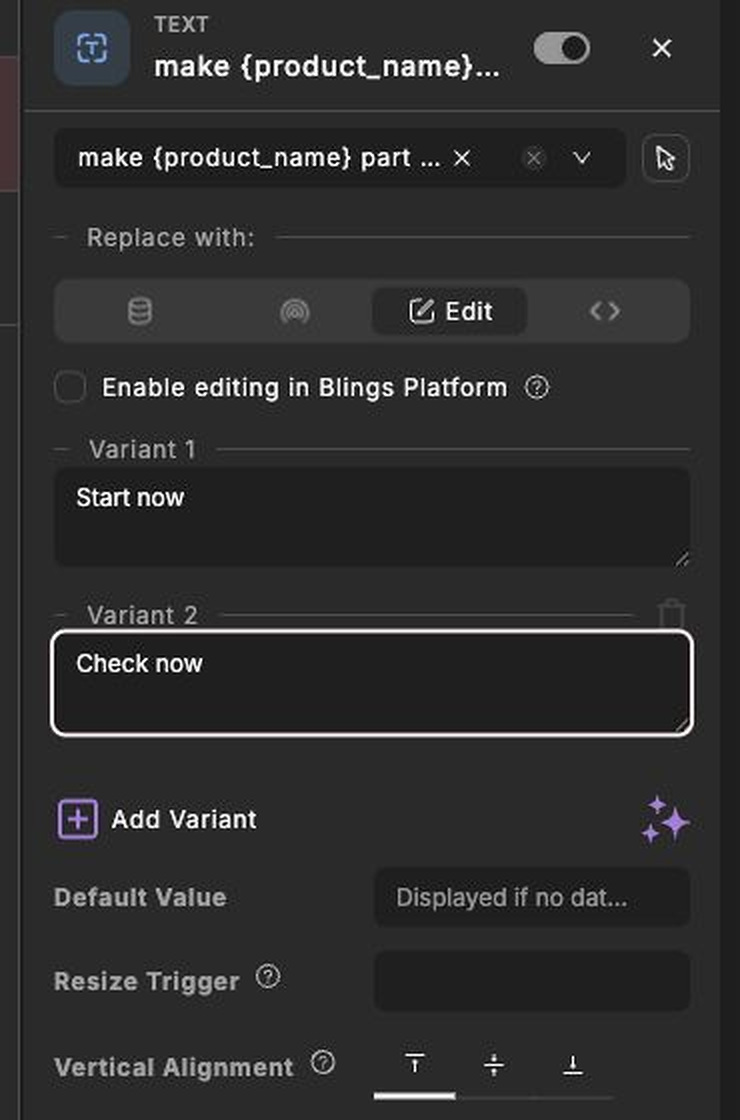
Use variants for meaningful alternatives, such as CTA copy, offer wording, button text, scene wording, links, or interaction behavior. Keep the tested difference focused so the result is actionable.
| Surface | Use it for | Current limits |
| -------------------------- | --------------------------------------------------------------------------------------------------------------------------------------- | -------------------------------------------------------------------------------------------------------------------- |
| **Platform: Edit Content** | Text layer variants, exposed media/asset values, and exposed theme-color values. | The **Add Variant** control is not shown for interactive connector rows or countdown controls. Use Studio for those. |
| **Studio: Connect mode** | Connector-level variants, including broader text, link, button, branch, JavaScript expression, form-submit, and other connected values. | Requires saving and publishing from Studio before Platform results can use the updated structure. |
{% tabs %}
{% tab title="Platform: Edit Content" %}
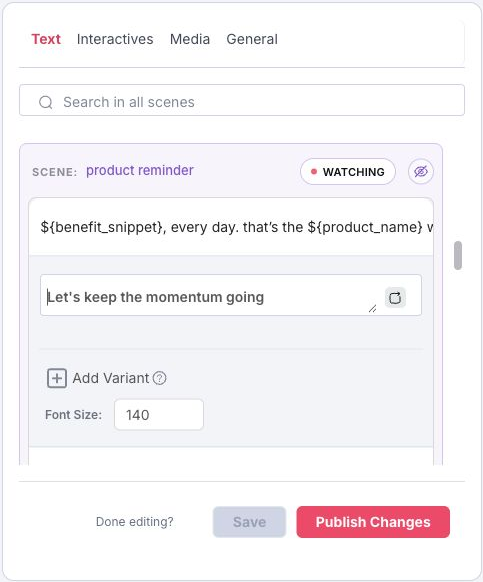
Use Platform when the change is a simple content or design value that already appears in **Edit Content**.
{% stepper %}
{% step %}
### Open Edit Content
In Platform, open the project and select **Edit Content** from the project navigation.
{% endstep %}
{% step %}
### Choose the Editable Row
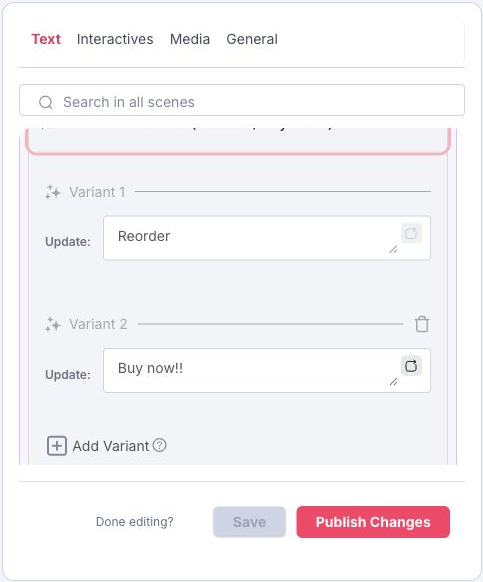
Open the **Text**, **Media**, or **General** tab and select the row you want to test. Platform can add variants for text rows and exposed Platform controls such as media/assets or theme colors.
{% endstep %}
{% step %}
### Add a Variant
Click **Add Variant** and enter the alternate value. Each variant should be a real production candidate, not filler copy.
{% endstep %}
{% step %}
### Save and Publish
Save the Edit Content change, then publish the project so Optimization can use the updated published variants.
{% endstep %}
{% endstepper %}
{% hint style="info" %}
If the row is an interactive connector, such as an Open Link, jump/goto, branch/concat, JavaScript expression, or form-submit action, create the variant in Studio instead. Platform can edit some interactive fields and select Main CTA buttons, but the Platform **Add Variant** workflow is for non-interactive Edit Content rows.
{% endhint %}
{% endtab %}
{% tab title="Studio: Connect Mode" %}
Use Studio when the variant belongs to connector setup, interaction behavior, or a value that does not appear as a Platform Edit Content row.
{% stepper %}
{% step %}
### Open the Scene in Connect Mode
In Studio, open the scene that contains the content or button you want to test, then switch to **Connect** mode.
{% endstep %}
{% step %}
### Select the Connector
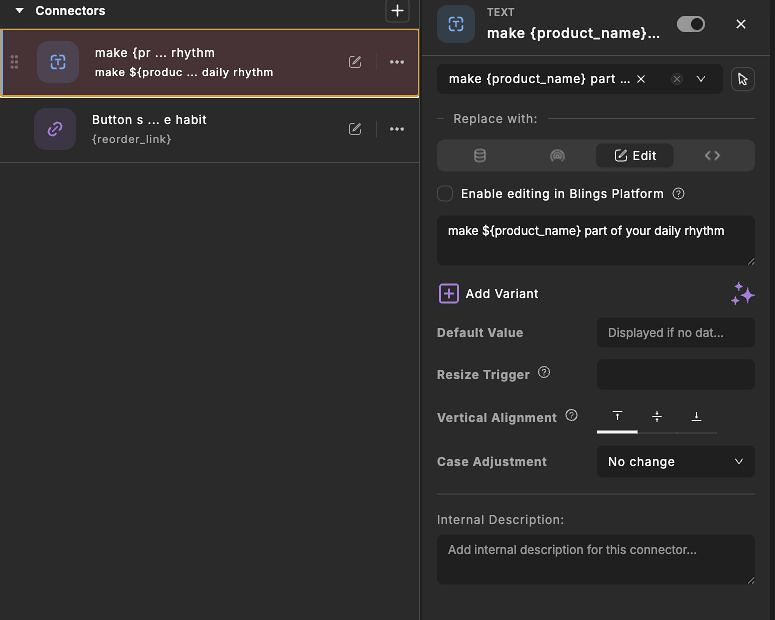
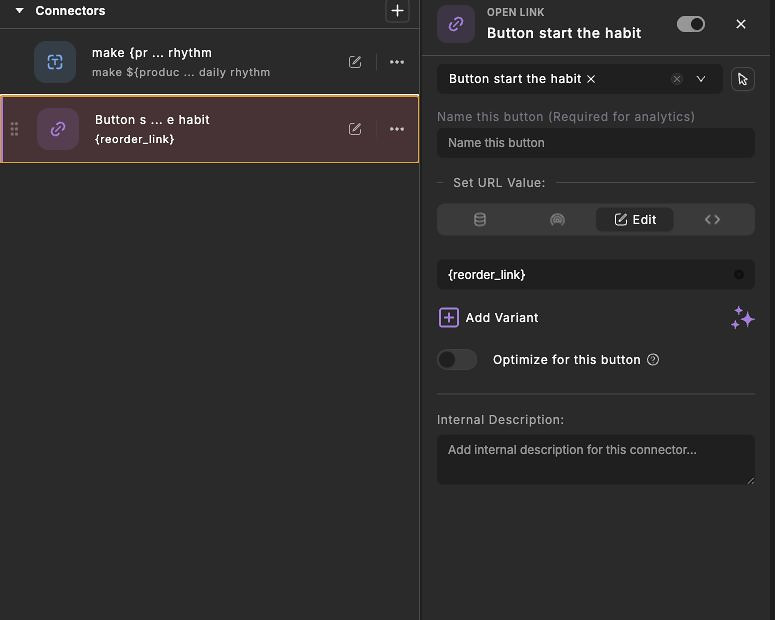
Choose the connector that owns the value. For copy tests, select a **Text** connector. For button tests, select the interactive connector, such as **Open Link**.
{% endstep %}
{% step %}
### Add a Variant
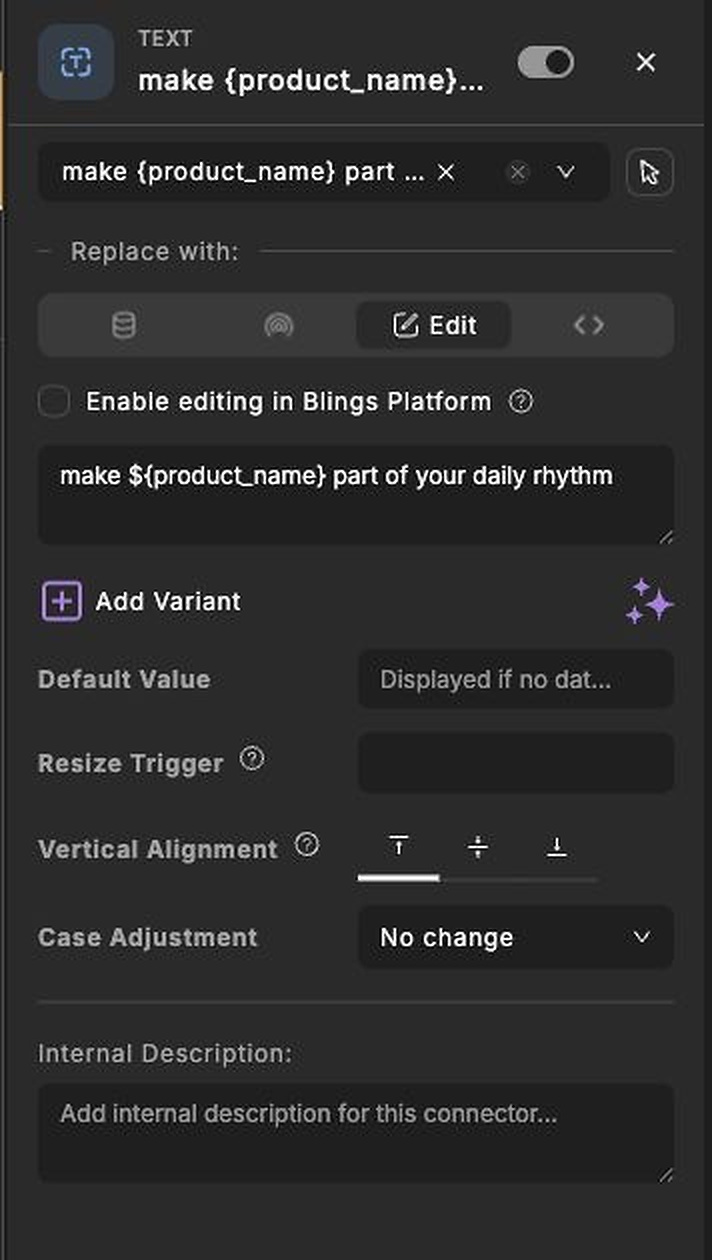
Use **Add Variant** on the connector panel to define alternate values. Each variant should be a real production candidate, not filler copy.
{% endstep %}
{% step %}
### Preview Every Variant
Check the layout, data fallback, language fit, button visibility, and click behavior before publishing. A variant that wins on paper still fails if the text overflows, the link is invalid, or the button is hard to see.
{% endstep %}
{% step %}
### Save and Publish
Save and publish the Studio changes so Platform can use the current connector and layer structure.
{% endstep %}
{% endstepper %}
{% endtab %}
{% endtabs %}
## Example Variant Ideas
Good variants compare one meaningful difference at a time. Keep each option production-ready so the optimization result can be used directly.
{% columns %}
{% column %}
{% endcolumn %}
{% column %}
| What to test | Example variants |
| -------------------------- | ----------------------------------------------------------------- |
| Button text | `Start now`, `Check now`, `Click me`, `Reorder today` |
| Button or background color | Purple `#7C3AED`, green `#16A34A`, amber `#F59E0B` |
| Offer wording | `Save 15% today`, `Get your refill`, `Continue your plan` |
| Reminder copy | Short direct reminder, benefit-led reminder, urgency-led reminder |
Use button text variants when the action label may change intent. Use color variants when the same action needs different visual emphasis, such as a button background, panel background, or highlighted CTA treatment.
{% endcolumn %}
{% endcolumns %}
## Define Converting Interactions in Studio
The Studio interaction setup controls whether an action is named, trackable, and eligible for conversion-focused optimization. Open Link is a common CTA example, but Platform can also list other enabled interactive actions, including jump/goto, branch/concat, JavaScript expression, and form-submit interactions.
Use Studio for variants that change these interactive connector values. Use Platform later to choose which of those interactions should count as Main CTA conversions.
Review these fields on the interactive connector:
* **Action layer** confirms the connector is attached to the visible button, hotspot, form, or interaction viewers can use.
* **Name this button** gives Platform a readable analytics label. Use a business-readable name, such as `Start the habit` or `Reorder now`.
* **Action value** defines what the interaction does. For Open Link this is the URL value; for other interaction types it may be a target scene, custom action, or form behavior.
* **Add Variant** creates alternate values when the action, button text, color, or connected content is part of the experiment.
* **Optimize for this button** marks the interaction as optimization-relevant when it should be available as a Main CTA candidate.
After changing an interactive connector, save, publish, and confirm the action appears correctly in the MP5 preview.
## Select Main CTA Buttons in Platform
For conversion optimization, Platform needs to know which Studio interactions count as the main conversion action.
{% stepper %}
{% step %}
### Open the Main CTA Selector
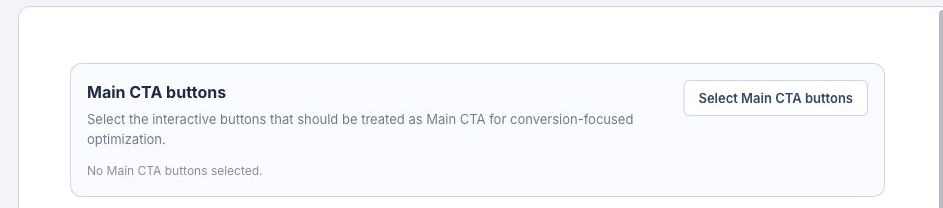
In Platform, go to **Optimization** and click **Select Main CTA buttons**.
{% endstep %}
{% step %}
### Choose the Buttons That Represent Conversion
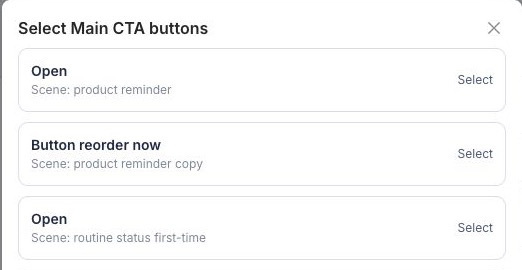
The selector lists available interactive buttons with their scene context. Select only the actions that truly represent the campaign goal.
For a conversion goal, choose the action or actions that mean success for the campaign. For example, select `Reorder now`, `Book a demo`, or `Submit form` when those actions represent the business outcome.
Do not select low-intent navigation or exploratory clicks just because they are interactive.
{% endstep %}
{% step %}
### Do Not Select Every Clickable Action
Navigation, replay, low-intent links, or exploratory choices can be useful engagement signals, but they should not all count as conversion. The Main CTA should match the business outcome you want AI Optimization to improve.
{% endstep %}
{% step %}
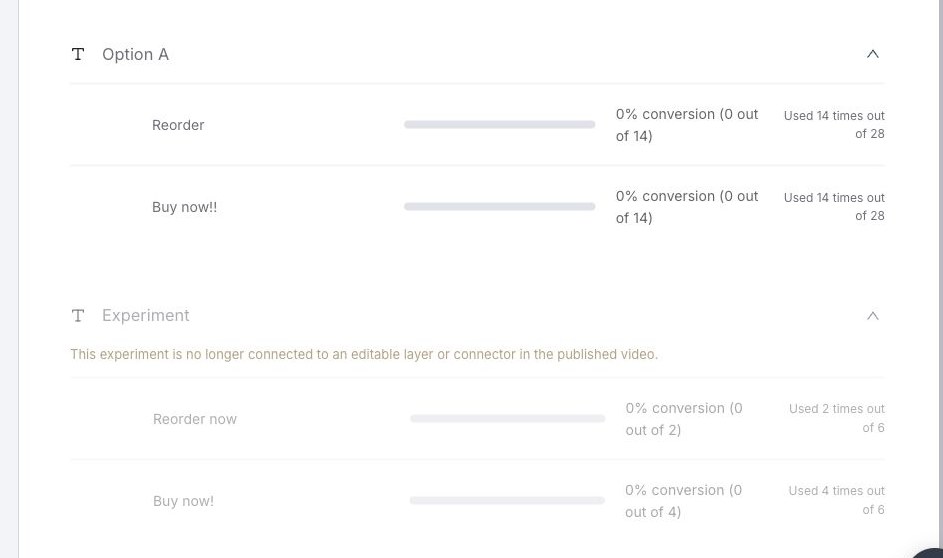
### Review the Conversion Rows
After traffic arrives, Platform shows conversion rate, converted sessions, and usage for each variant. Use these rows to compare both performance and exposure.
{% endstep %}
{% endstepper %}
## Read Variant Results
Variant results should be read as a decision aid, not as a one-time report.
| Signal | How to use it |
| ------------------------------ | --------------------------------------------------------------------------------------------------------- |
| **Conversion rate** | Compare how often viewers complete the selected Main CTA after seeing each variant. |
| **Converted sessions** | Check the actual count behind the rate. A high rate with very few sessions can be unstable. |
| **Usage** | Confirm whether a variant received enough exposure before making a decision. |
| **Engagement and watch time** | Use these to understand why conversion changed, especially when viewers drop before reaching the CTA. |
| **Generated videos and plays** | Separate optimization quality from delivery volume. Low traffic can make every variant look inconclusive. |
{% hint style="warning" %}
AI Optimization does not immediately choose one permanent winner. The player serves variants with weighted random selection: stronger variants become more likely to appear, but other variants can still surface. In the current player logic, variants with fewer than 100 selections use a baseline success factor, and every variant keeps a minimum chance so early noise does not remove it too quickly.
{% endhint %}
## Keep Improving the Metrics
AI Optimization works best as an ongoing improvement loop. The feature can shift attention toward better-performing variants, but the team still needs to create better hypotheses, review the right metrics, and keep the project aligned with the campaign goal.
Use this loop after launch:
{% stepper %}
{% step %}
### Start With a Hypothesis
Define what you expect to improve. For example: shorter CTA copy may improve conversion, or a more specific product reminder may improve watch time before the CTA.
{% endstep %}
{% step %}
### Let the Variants Collect Traffic
Avoid editing variants too quickly. Give each option enough exposure before reading the shift in usage as meaningful. The algorithm can move traffic toward stronger variants over time, but unusual traffic periods or tiny samples can still distort the signal.
{% endstep %}
{% step %}
### Review the Whole Funnel
Compare generated videos, plays, engagement, watch time, and conversion. A conversion issue may actually be a delivery issue, a scene drop-off issue, or a weak button-label issue.
{% endstep %}
{% step %}
### Keep the Stronger Direction and Create the Next Test
When the result is clear enough to act on, keep the stronger direction, remove stale variants, and create the next focused test.
{% endstep %}
{% step %}
### Recheck the Target
As the campaign matures, confirm the target still matches the business goal. Do not keep optimizing a CTA that no longer represents success.
{% endstep %}
{% endstepper %}
## Setup Checklist
Before relying on AI Optimization, confirm:
* The project has one clear primary target.
* The target is connected to a measurable viewer action.
* Studio variants are published and previewed.
* Button connectors are named for analytics.
* Buttons that should be optimized are marked in Studio.
* Main CTA buttons are selected in Platform for conversion optimization.
* Analytics has enough traffic before decisions are made.
* The team has a review cadence for improving copy, buttons, flows, and variants.
## Related Guides
{% content-ref url="/pages/15Y0k3Ob2rYei0wWF5ML" %}
[Dashboard and Analytics](/apps/blings-platform/dashboard-and-analytics.md)
{% endcontent-ref %}
{% content-ref url="/pages/RriIPSZvZmIDs2Zp9lFy" %}
[Settings](/apps/blings-platform/settings-and-optimization.md)
{% endcontent-ref %}
{% content-ref url="/pages/LKr41F2IH1N3fyqAfPza" %}
[Open Link](/apps/blings-studio/connectors/open-link.md)
{% endcontent-ref %}