> For the complete documentation index, see [llms.txt](https://help.blings.io/llms.txt). Markdown versions of documentation pages are available by appending `.md` to page URLs; this page is available as [Markdown](https://help.blings.io/apps/blings-platform/catalog.md).

# Catalog

Catalog stores reusable rows of structured data that can be referenced by a project. Use it when the MP5 experience needs a managed list of products, plans, offers, store locations, loyalty tiers, recommendations, or other repeatable records.

Catalog has two parts:

* **Dynamic Data schema** defines the catalog item and the fields every row should contain.
* **Catalog rows** store the actual reusable records that Platform users can create, edit, duplicate, preview, and save.

{% hint style="info" %}
The Catalog page only becomes editable after the project has a catalog item in **Settings > Dynamic Data**. If the schema is missing, Catalog shows setup guidance and an **Open Dynamic Data** button.
{% endhint %}

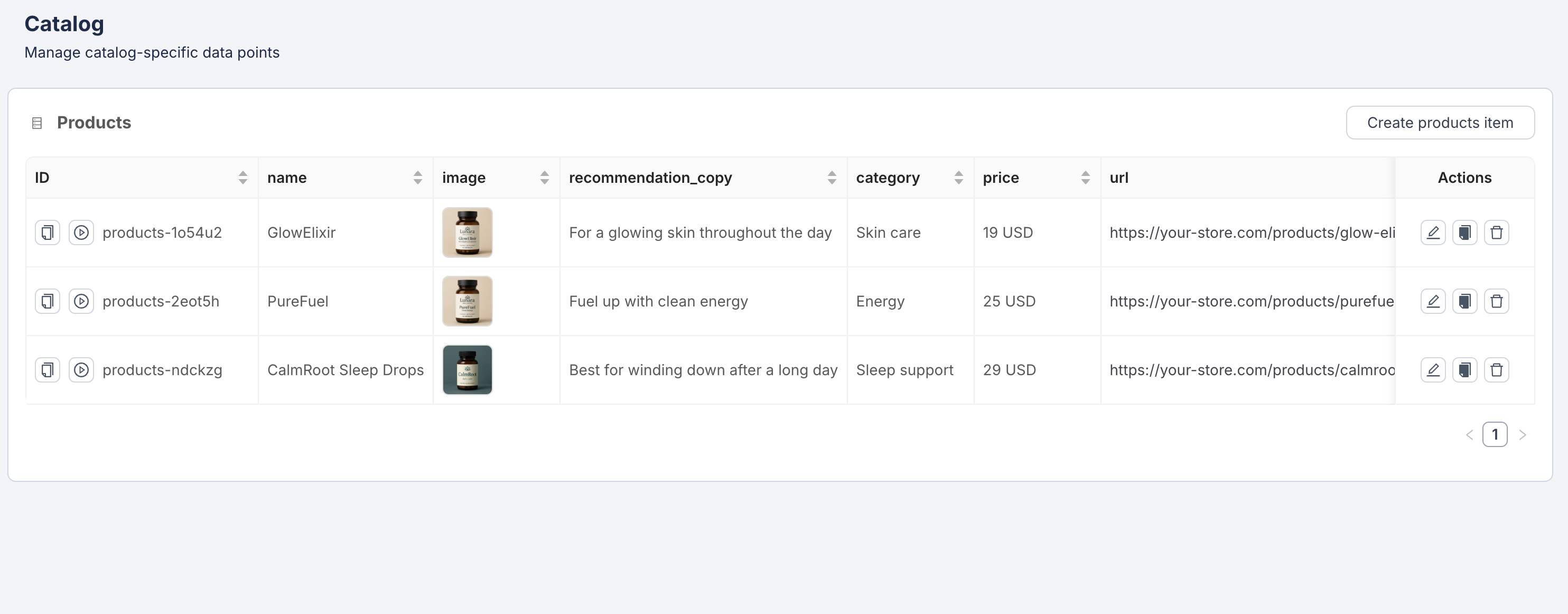
<figure><img src="/files/FFvBWueysxGfwfO9vnNZ" alt="Catalog page showing a Products table with GlowElixir, PureFuel, and CalmRoot Sleep Drops rows"><figcaption><p>A saved `products` catalog with product images, recommendation copy, category, price, URL, and row actions.</p></figcaption></figure>

## When to Use Catalog

Use a catalog when the same kind of record appears in several places or changes independently from individual viewer data.

| Use case                   | Catalog example                                                          | How the MP5 can use it                                                                                      |
| -------------------------- | ------------------------------------------------------------------------ | ----------------------------------------------------------------------------------------------------------- |
| E-commerce recommendations | Products with name, image, price, category, URL, and recommendation copy | Show the best product for a viewer, update product details centrally, and route clicks to the product page. |
| Offers and promotions      | Discount code, headline, expiry date, legal copy, and CTA URL            | Rotate campaign offers without changing each viewer record.                                                 |
| Plan comparison            | Plan name, monthly price, included features, and upgrade link            | Present the right subscription plan based on viewer segment.                                                |
| Store or branch lookup     | Location name, address, manager, opening hours, and map URL              | Personalize local store information in the video.                                                           |
| Loyalty tiers              | Tier name, points threshold, perk image, and reward text                 | Show the viewer's current tier or next-tier benefit.                                                        |

## Create a Catalog Item

{% stepper %}
{% step %}

### Open Dynamic Data

In the project, go to **Settings > Dynamic Data**.

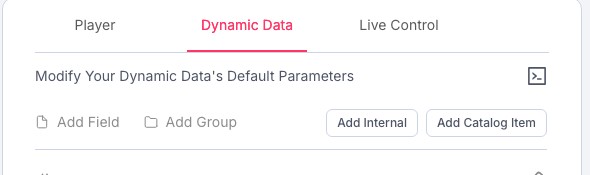
<figure><img src="/files/RUpscY3OUW7YBbKZ2Ehh" alt="Dynamic Data toolbar with Add Catalog Item"><figcaption><p>Use Add Catalog Item to create the schema section that powers Catalog rows.</p></figcaption></figure>
{% endstep %}

{% step %}

### Add the Catalog Item

Select **Add Catalog Item** and name the catalog item after the row type, such as `products`, `plans`, `offers`, `locations`, or `loyalty_tiers`.

For an e-commerce recommendation catalog, use a clear item name such as `products`.

<figure><img src="/files/ijYn0Kh16PlsnZ9myEEb" alt="Add catalog item modal with products entered as the catalog item name"><figcaption><p>The catalog item name creates the section that appears under `catalog` in Dynamic Data.</p></figcaption></figure>
{% endstep %}

{% step %}

### Define the Row Fields

Add fields under the catalog item so every row has the same structure. A product recommendation catalog commonly includes:

| Field                 | Type           | Example value                             |
| --------------------- | -------------- | ----------------------------------------- |
| `name`                | Text           | `CalmRoot Sleep Drops`                    |
| `image`               | Image URL      | Product image URL                         |
| `price`               | Text or number | `29 USD`                                  |
| `category`            | Text           | `Sleep support`                           |
| `url`                 | Link           | Product detail page URL                   |
| `recommendation_copy` | Text           | `Best for winding down after a long day.` |
| {% endstep %}         |                |                                           |

{% step %}

### Review the Schema Example

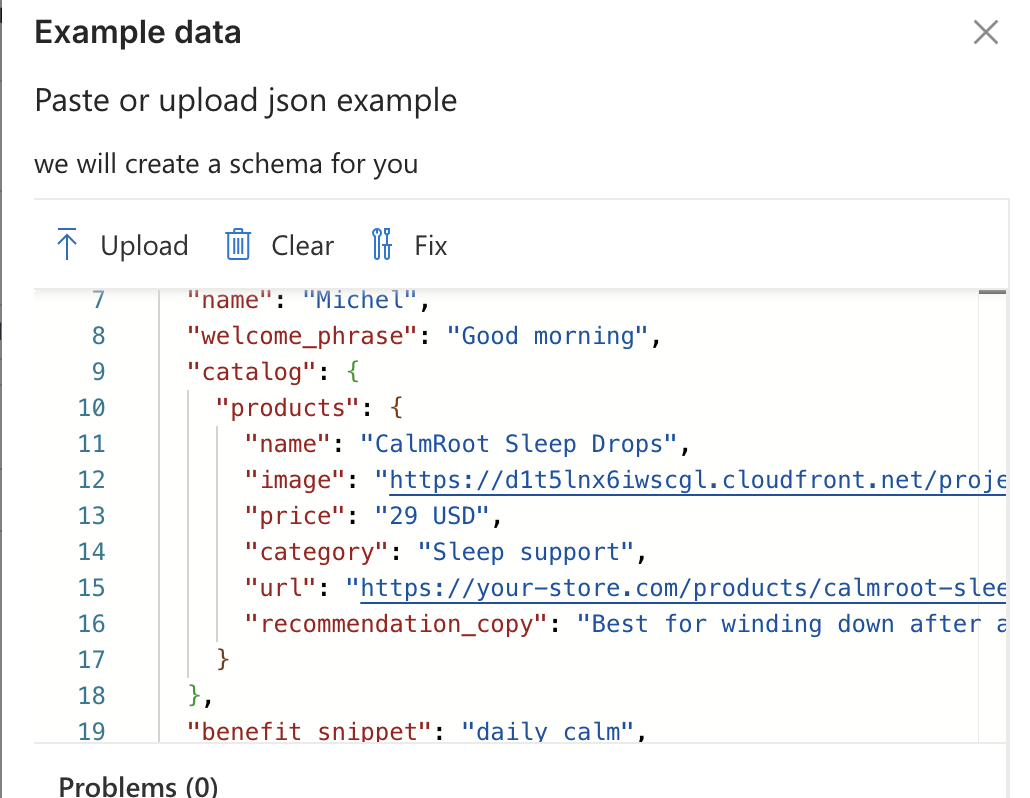
Use code mode when you want to paste or review a full JSON example for the catalog fields.

<figure><img src="/files/yl76nJaKQ4jJrP0KMmGQ" alt="Dynamic Data code mode showing catalog products fields in JSON"><figcaption><p>Code mode can show the `catalog.products` schema with fields such as `name`, `image`, `price`, `category`, `url`, and `recommendation_copy`.</p></figcaption></figure>
{% endstep %}

{% step %}

### Save the Schema

Select **Save** in Dynamic Data. After the save completes, open **Catalog** from the project navigation.
{% endstep %}
{% endstepper %}

## Add Catalog Rows

After the schema exists, use the Catalog page to manage the records.

{% stepper %}
{% step %}

### Choose the Catalog Item

Open **Catalog** and select the item type you created, such as `products`.
{% endstep %}

{% step %}

### Create a Row

Add a new row and fill every required field. For an e-commerce shop, one row might be:

| Field                 | Value                                                  |
| --------------------- | ------------------------------------------------------ |
| `name`                | `CalmRoot Sleep Drops`                                 |
| `image`               | Product image URL or uploaded product image            |
| `price`               | `29 USD`                                               |
| `category`            | `Sleep support`                                        |
| `url`                 | `https://your-store.com/products/calmroot-sleep-drops` |
| `recommendation_copy` | `Best for winding down after a long day.`              |

<figure><img src="/files/VIk3ydnOC34Iqj0lytbd" alt="New products item modal with fields for name, image, price, category, URL, and recommendation copy"><figcaption><p>Each catalog row uses the fields defined in Dynamic Data.</p></figcaption></figure>
{% endstep %}

{% step %}

### Add More Recommendations

Create additional rows for the other recommended items the video may show.

| `name`                 | `category`      | `price`  | `recommendation_copy`                    |
| ---------------------- | --------------- | -------- | ---------------------------------------- |
| `GlowElixir`           | `Skin care`     | `19 USD` | `For a glowing skin throughout the day`  |
| `PureFuel`             | `Energy`        | `25 USD` | `Fuel up with clean energy`              |
| `CalmRoot Sleep Drops` | `Sleep support` | `29 USD` | `Best for winding down after a long day` |
| {% endstep %}          |                 |          |                                          |

{% step %}

### Save and Preview

Save the catalog rows. Use **Simulate** to preview the viewer experience with a test persona and confirm that the correct row values appear in the MP5.
{% endstep %}
{% endstepper %}

## Saved Catalog View

After the rows are saved, the Catalog page shows a table for the catalog item. In the `products` example, the table includes the row ID, `name`, `image`, `recommendation_copy`, `category`, `price`, `url`, and row actions.

Use the row actions to edit an item, duplicate it, or delete it. Use **Create products item** to add another product row with the same field structure.

## Example JSON

Use this structure when planning a product recommendation catalog with a developer or when preparing sample data before building the schema:

```json
{
  "catalog": {
    "products": {
      "name": "CalmRoot Sleep Drops",
      "image": "https://cdn.your-store.com/products/calmroot-sleep-drops.webp",
      "price": "29 USD",
      "category": "Sleep support",
      "url": "https://your-store.com/products/calmroot-sleep-drops",
      "recommendation_copy": "Best for winding down after a long day"
    }
  }
}
```

The catalog item defines the fields. The Catalog page stores the actual rows, such as `GlowElixir`, `PureFuel`, and `CalmRoot Sleep Drops`.

## Catalog Management

Common catalog actions include:

* **Create** rows for new products, plans, offers, locations, or tiers.
* **Edit** rows when a name, price, image, CTA link, or description changes.
* **Duplicate** rows to create similar recommendations quickly.
* **Preview** row values before testing the full MP5 experience.
* **Save** after changing the schema or row data so the project uses the latest catalog values.

{% content-ref url="/pages/tcTMJOKSy05H4hRxVQ8F" %}
[Data, Catalog, and Forms](/apps/blings-platform/data-catalog-and-forms.md)
{% endcontent-ref %}

{% content-ref url="/pages/VkH17x1J2SH1VmvzEgwU" %}
[Simulation](/apps/blings-platform/simulation.md)
{% endcontent-ref %}