> For the complete documentation index, see [llms.txt](https://help.blings.io/llms.txt). Markdown versions of documentation pages are available by appending `.md` to page URLs; this page is available as [Markdown](https://help.blings.io/apps/blings-platform/content-and-flow.md).
# Edit Content
Manage editable project content and live controls in Platform
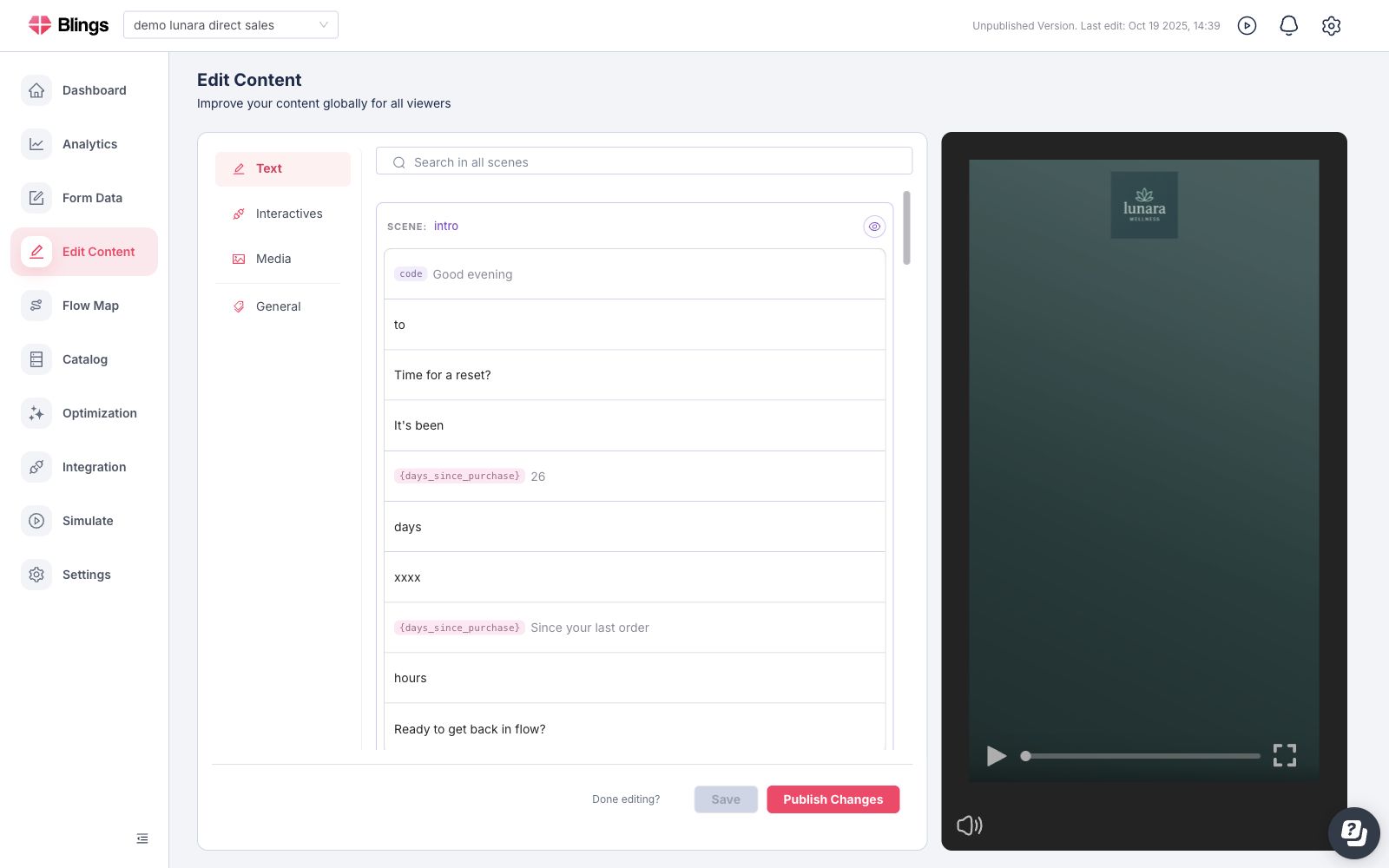
Platform separates approved content updates from visual editing. Use **Edit Content** to change viewer-facing values that were exposed for Platform editing, such as copy, interactive labels, media, and live-control values.
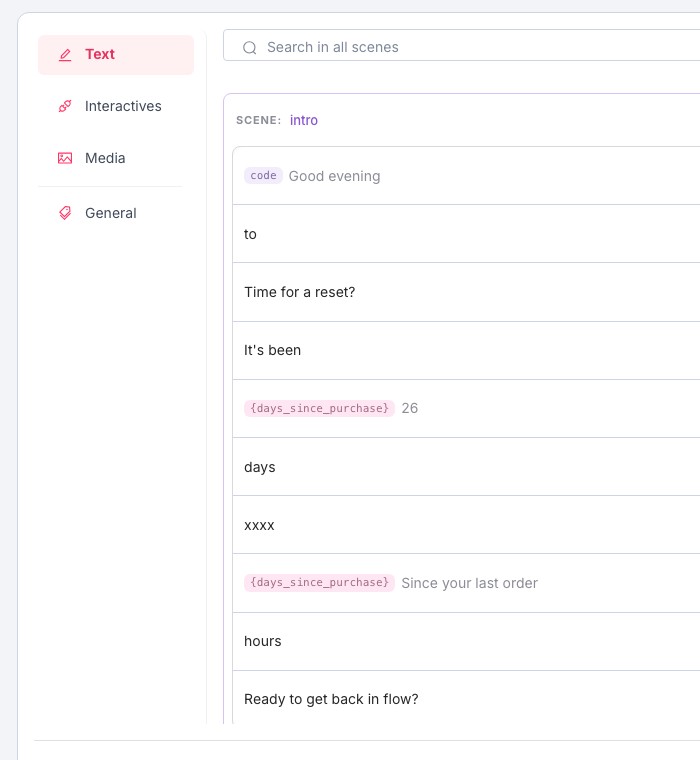
Edit Content organizes editable project elements by type:
* **Text** for copy, labels, dynamic text fragments, and fields that include data tokens.
* **Interactives** for buttons, polls, forms, and other viewer actions.
* **Media** for image, audio, and video elements exposed to Platform.
* **General** for live-control values and project-level editable values.
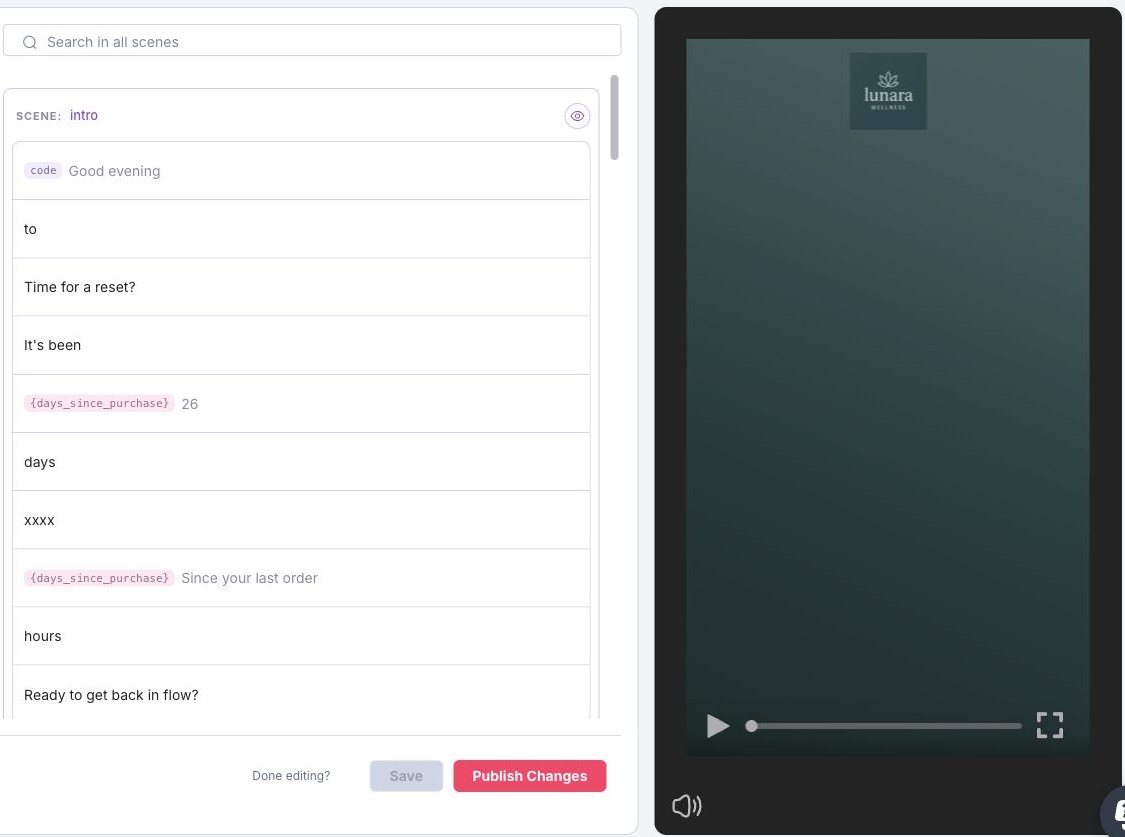
Each content section keeps scene context visible. The preview panel helps validate how a change appears inside the current MP5 experience before the change is published.
## What Can Be Edited
Edit Content shows only the project elements that were intentionally exposed for Platform operation. It is the right place for approved, repeatable content changes that should not require opening the full Studio editor.
| Area | Can be edited in Platform | Use Studio or another Platform area for |
| -------------------- | ----------------------------------------------------------------------------------------------------------------------------------------- | ----------------------------------------------------------------------------------------------------------------------------- |
| **Text** | Exposed copy, labels, direct text values, and text that includes data tokens. | Text layer layout, fonts, animation, timing, connector structure, or new dynamic bindings. |
| **Interactives** | Exposed button labels, choices, link values, form copy, or other interaction values made available by the project setup. | Connector type, trigger behavior, form-submit wiring, branch behavior, JavaScript expressions, or new interaction logic. |
| **Media** | Exposed image, audio, video, logo, or asset values. | Scene timing, masks, animation, cropping behavior, media connector setup, or creative layout changes. |
| **General** | Live-control values and shared project-level values, such as campaign labels, colors, logos, or operational settings connected in Studio. | Dynamic Data schema changes, Live Control schema structure, player settings, catalog records, or integration payload mapping. |
| **Flow and routing** | Review context only when the editable value affects the visible experience. | Scene order, lineups, conditions, A/B test paths, and branching logic in Flow Map. |
{% hint style="info" %}
If a value does not appear in Edit Content, it usually has not been exposed for Platform editing. Ask the project creator or Studio owner to expose the value, or make the change in Studio when it affects creative structure, connectors, or layout.
{% endhint %}
## Permissions and Access
Access to Edit Content depends on the workspace, project role, and project setup. Some users can review the page but cannot save or publish. Some tabs or rows may be missing when the project does not include that content type, the value was not exposed, or the account does not have the feature enabled.
Before assigning an operational editor, confirm:
* The user has access to the correct workspace and project.
* The user's role allows content editing and publishing when publishing is part of the workflow.
* The values they need to manage are exposed in Edit Content.
* Studio-only changes have a clear owner so Platform editors do not have to guess where a missing value lives.
* High-risk changes, such as URLs, legal copy, offer terms, or form labels, have an approval path before publish.
{% hint style="warning" %}
Do not use shared credentials to work around missing permissions. If Save or Publish is unavailable, ask a workspace administrator to update access or have an authorized publisher complete the release.
{% endhint %}
## Editing Workflow
{% stepper %}
{% step %}
### Find the Editable Surface
Open Edit Content for text, interactivity, media, or live-control updates. Search across scenes when the exact scene is not known.
{% endstep %}
{% step %}
### Check the Preview
Review the selected scene in the player preview. Dynamic tokens should read correctly with the selected test profile values.
{% endstep %}
{% step %}
### Route Changes Separately
Use Flow Map when the change affects scene order, branching logic, or which lineup a viewer should enter.
{% endstep %}
{% step %}
### Save and Publish Intentionally
Save keeps the working content update in draft. Publish moves reviewed content and routing changes into the viewer-facing project state.
{% endstep %}
{% endstepper %}
## Draft, Publish, and Rollback Expectations
Saved edits are draft changes until they are published. Use the preview panel and Simulation to review the draft with representative data before publishing, especially when the value includes dynamic tokens, links, media, form text, or campaign terms.
| Action | What to expect |
| ------------ | ---------------------------------------------------------------------------------------------------------------------------------------------------------------------------------------------------------------------------------------------------------------------------------- |
| **Save** | Stores the edited value in the project draft so it can be reviewed and continued later. It does not by itself guarantee the live viewer-facing experience has changed. |
| **Preview** | Shows the selected scene or player state for review. Use representative test profiles when the result depends on Dynamic Data, Live Control, catalog records, or conditional routing. |
| **Publish** | Moves the reviewed project draft into the viewer-facing project state. Publish only after the content, flow, links, and data-dependent states have been checked. |
| **Rollback** | Plan rollback before publishing. For simple content changes, restore the previous value, save, review, and publish again. For structural Studio, connector, or Flow Map changes, coordinate with the project owner or Blings support if a previous project state must be restored. |
Before publishing an Edit Content change:
* Copy or record the previous value for anything that may need to be restored quickly.
* Check long text, missing data, and translated copy in the preview.
* Test links, buttons, and form-related copy from the published-style player path.
* Confirm the selected lineup and relevant Flow Map path still match the campaign.
* Record the publish time when Analytics will be used to compare before-and-after performance.
{% hint style="info" %}
Treat rollback as a new reviewed publish, not as an automatic undo. The fastest rollback is usually a prepared previous value and an authorized publisher who can republish it.
{% endhint %}
{% hint style="info" %}
Content appears in Platform only when it has been exposed for Platform editing from the project setup. Visual layer design and connector structure are managed in Studio.
{% endhint %}
{% content-ref url="/pages/o3Uq9AhtjBVAMsxuyMFA" %}
[Flow Map basics](/apps/blings-platform/flow-map.md)
{% endcontent-ref %}
{% content-ref url="/pages/MfhlAKXUimxhaVZbrFBV" %}
[Connectors](/apps/blings-studio/connectors.md)
{% endcontent-ref %}