> For the complete documentation index, see [llms.txt](https://help.blings.io/llms.txt). Markdown versions of documentation pages are available by appending `.md` to page URLs; this page is available as [Markdown](https://help.blings.io/apps/blings-platform/settings-and-optimization.md).
# Settings
Configure player loading, playback, timeline, colors, Dynamic Data, and Live Control
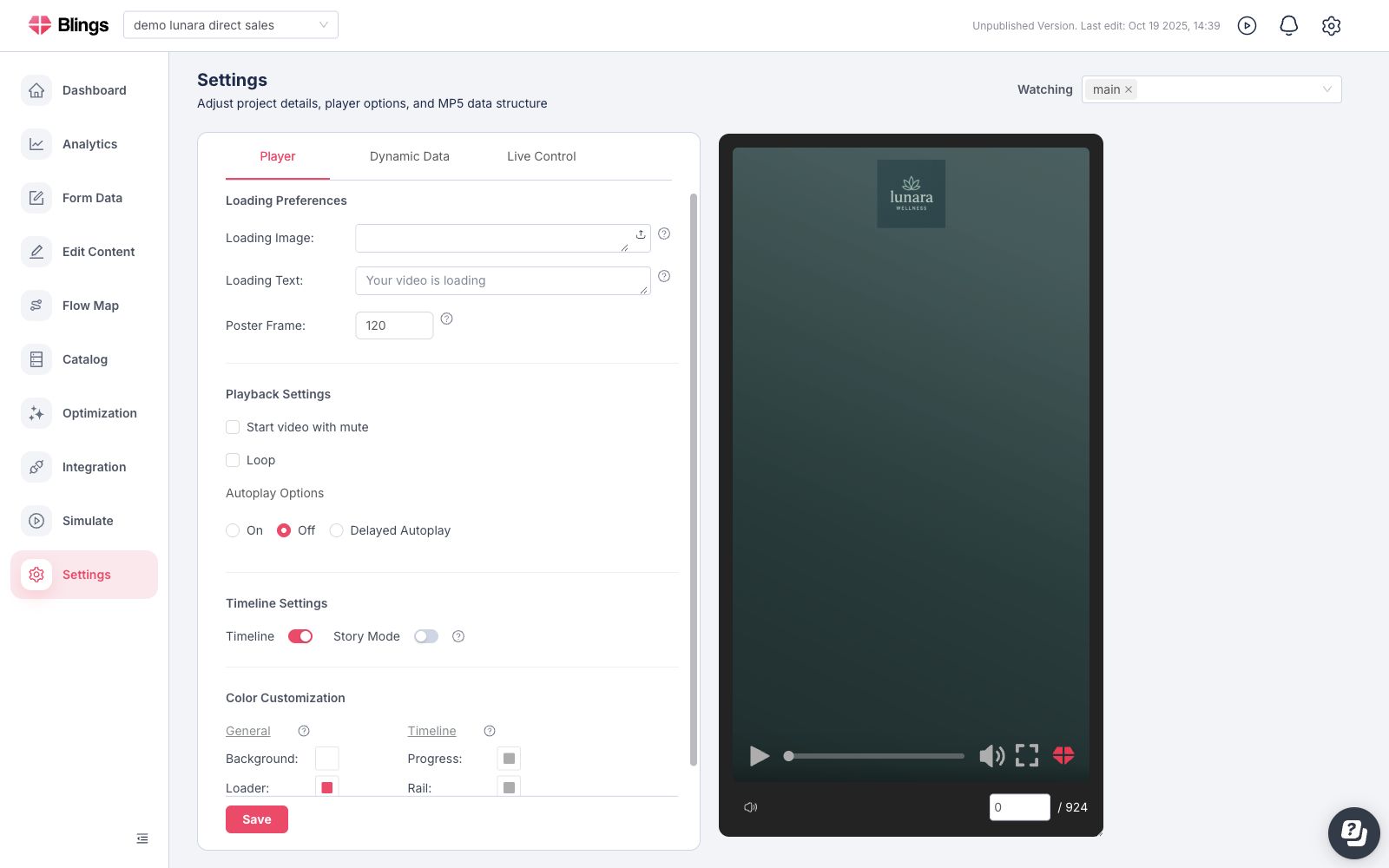
The Settings page controls how an MP5 project loads, plays, displays player controls, and exposes project-level data configuration. The page is split into **Player**, **Dynamic Data**, and **Live Control** tabs.
Use the **Player** tab for runtime player behavior: loading state, mute, loop, autoplay, timeline display, story mode, and player colors. Use **Dynamic Data** and **Live Control** for the project data fields and shared operational values that the MP5 experience can read.
{% tabs %}
{% tab title="Player Settings" %}
The Player tab changes the behavior, controls, and frame of the MP5 player. The preview on the right uses the current field values, the selected **Watching** lineup, and representative project data so you can check the result before saving.
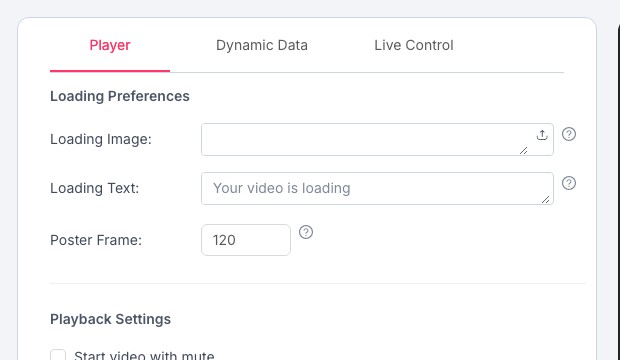
### Loading Preferences
| Field | What it controls | Notes |
| ----------------- | ----------------------------------------------------------------------------- | ------------------------------------------------------------------------------------------------------------------------------------------------------------------ |
| **Loading Image** | The image shown while the MP5 player is loading. | Use a valid image URL or upload an image from your device. Keep the image close to the video aspect ratio so the loading state does not feel cropped or stretched. |
| **Loading Text** | The text shown during the loading process. | Keep it short. The default placeholder is **Your video is loading**. |
| **Poster Frame** | The frame number shown during the final loading phase before playback begins. | Use a neutral or introductory frame. If you also use a loading image, choose a poster frame that transitions cleanly from that image. |
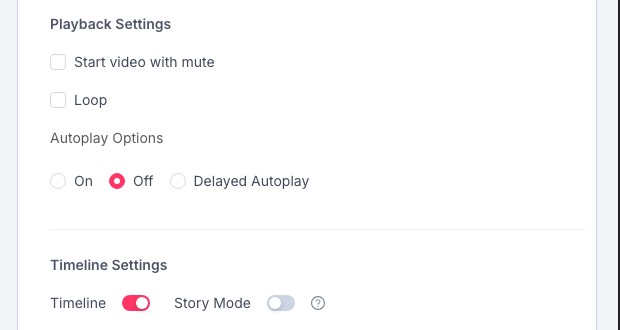
### Playback Settings
| Field | What it controls | Notes |
| -------------------------------------- | ------------------------------------------------------------- | ------------------------------------------------------------------------------------------------------- |
| **Start video with mute** | Starts playback with audio muted. | Use this when the delivery channel or browser context is likely to require muted playback. |
| **Loop** | Replays the MP5 automatically after it ends. | Use for kiosk, demo, or ambient playback. Leave it off when a single completion should end the session. |
| **Autoplay Options: On** | Starts playback automatically when the player is ready. | Browser policies may still affect autoplay, especially when audio is enabled. |
| **Autoplay Options: Off** | Waits for the viewer to press play. | Use when the viewer should intentionally start the experience. |
| **Autoplay Options: Delayed Autoplay** | Starts playback automatically after a configured delay. | Available for projects using player version 4.13.0 or later. |
| **Delayed Autoplay seconds** | The number of seconds to wait before delayed autoplay starts. | This field appears only after **Delayed Autoplay** is selected on a supported player version. |
### Timeline Settings
| Field | What it controls | Notes |
| -------------- | --------------------------------------------------------- | ---------------------------------------------------------------------------------------------------------------- |
| **Timeline** | Shows or hides the player timeline. | When Timeline is off, story mode and timeline color fields are disabled because there is no timeline to display. |
| **Story Mode** | Changes the timeline into a story-style progress display. | Story Mode is available only when Timeline is on. It uses progress and rail colors, but not the Thumb color. |
### Color Customization
Color Customization changes the player interface, not the creative content inside the MP5. If the project also has color fields in **Live Control**, those fields are project-defined values that Studio connectors can use inside the video.
| Group | Field | What it colors | Notes |
| ------------ | -------------- | ------------------------------------------------------------------------------ | ------------------------------------------------------------------------------------ |
| **General** | **Background** | The player background behind or around the MP5 frame. | Use it to match the embed or landing-page environment. |
| **General** | **Loader** | The loading indicator color. | Pair it with the loading image and loading text for a consistent first state. |
| **General** | **Buttons** | Player control buttons, such as play, sound, fullscreen, and related controls. | Use a color with enough contrast against the player background and video content. |
| **Timeline** | **Progress** | The completed or watched portion of the timeline. | Disabled when Timeline is off. In Story Mode, this colors the active story progress. |
| **Timeline** | **Rail** | The remaining or inactive portion of the timeline. | Disabled when Timeline is off. In Story Mode, this colors inactive story segments. |
| **Timeline** | **Thumb** | The draggable scrubber handle on the standard timeline. | Disabled when Timeline is off or Story Mode is on. |
### Preview and Save
| Control | What it does | Notes |
| ------------------ | ---------------------------------------------------------- | -------------------------------------------------------------------------------------------- |
| **Watching** | Chooses the scene or lineup shown in the settings preview. | This is a preview selector. It does not replace the project flow or delivery configuration. |
| **Player preview** | Shows the MP5 with the current Player settings. | Use it to check loading behavior, poster frame, timeline visibility, story mode, and colors. |
| **Save** | Persists the Player settings to the project. | Save after changing loading, playback, timeline, or color fields. |
| {% endtab %} | | |
{% tab title="Dynamic Data" %}
Dynamic Data defines the viewer-specific fields that the MP5 project expects from a CRM, spreadsheet, SDK, URL, API, simulation profile, or other integration source.
Use Dynamic Data to manage:
| Control | What it means |
| ---------------------- | ---------------------------------------------------------------------------------------------------------------------------- |
| **Default Parameters** | The example or fallback values used when previewing and testing the project. |
| **Add Field** | Adds a standard viewer data field, such as text, number, image, link, or another supported type. |
| **Add Group** | Organizes related fields together. |
| **Add Internal** | Adds an internal data group for fields used by the project but not usually provided as viewer-facing integration parameters. |
| **Add Catalog Item** | Adds a reusable catalog-backed data group, such as products, plans, offers, or loyalty tiers. |
| **Code mode** | Opens the schema in a structured editor for direct schema inspection or advanced edits. |
| **Save** | Persists the Dynamic Data schema and default values. |
{% content-ref url="/pages/tcTMJOKSy05H4hRxVQ8F" %}
[Data, Catalog, and Forms](/apps/blings-platform/data-catalog-and-forms.md)
{% endcontent-ref %}
{% endtab %}
{% tab title="Live Control" %}
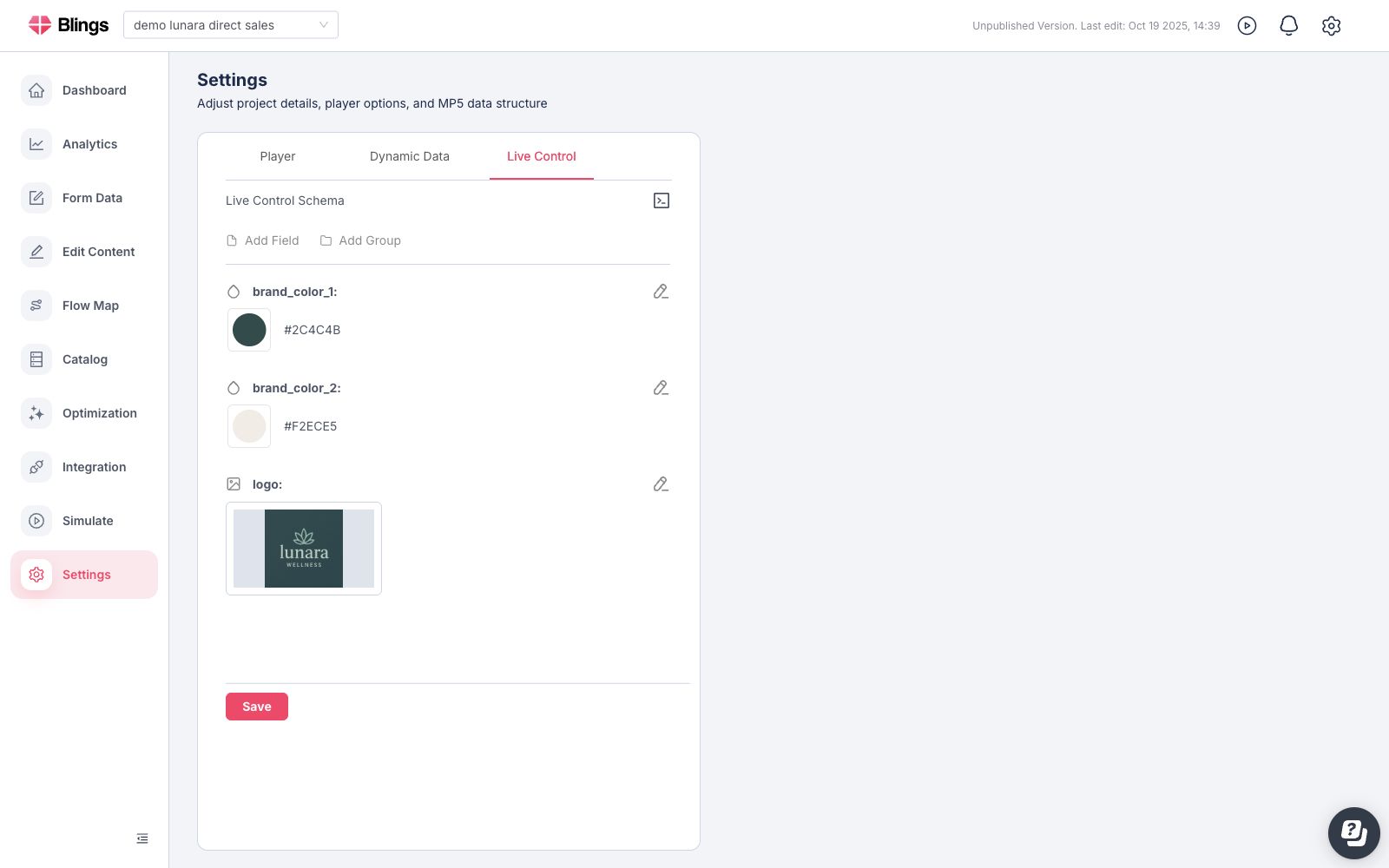
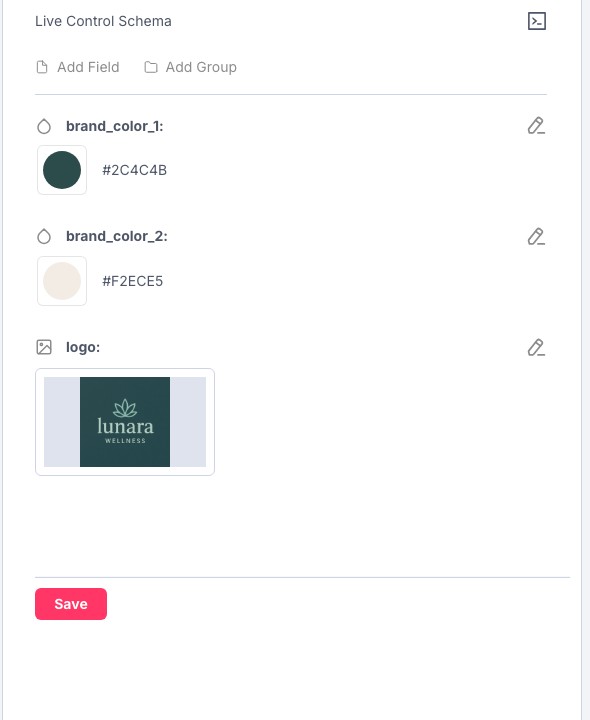
Live Control defines shared project values that can be updated centrally without changing each viewer's data. These values are commonly used for brand colors, logos, campaign labels, offer text, or other operational controls connected in Studio.
| Control | What it means |
| ---------------------------- | ------------------------------------------------------------------------------------------------------------------------------------------------------------- |
| **Create Live Control Data** | Creates starter Live Control fields when the project does not have a Live Control schema yet. |
| **Live Control fields** | The editable shared values for the project. Each field's meaning depends on how it is named and connected in Studio. |
| **Color fields** | Project-defined colors that can drive connected layers inside the MP5. These are separate from Player color customization, which colors the player interface. |
| **Asset fields** | Shared media values, such as logos or images, when the Live Control schema includes asset fields. |
| **Code mode** | Opens the Live Control schema and example data in a structured editor. |
| **Save** | Persists the Live Control schema and current shared values. |
{% endtab %}
{% endtabs %}
## Settings Flow
{% stepper %}
{% step %}
### Choose What to Preview
Use **Watching** to preview the scene or lineup you want to check while editing settings.
{% endstep %}
{% step %}
### Set the Loading State
Configure the loading image, loading text, and poster frame so the player displays a deliberate first state.
{% endstep %}
{% step %}
### Choose Playback Behavior
Set mute, loop, autoplay, delayed autoplay, timeline visibility, and story mode based on the delivery channel and viewer context.
{% endstep %}
{% step %}
### Match the Player Colors
Set the player background, loader, buttons, timeline progress, rail, and thumb colors.
{% endstep %}
{% step %}
### Save and Validate
Save the settings, then use the preview and Simulate Personas to confirm the result with realistic data.
{% endstep %}
{% endstepper %}
{% content-ref url="/pages/VkH17x1J2SH1VmvzEgwU" %}
[Simulation](/apps/blings-platform/simulation.md)
{% endcontent-ref %}