> For the complete documentation index, see [llms.txt](https://help.blings.io/llms.txt). Markdown versions of documentation pages are available by appending `.md` to page URLs; this page is available as [Markdown](https://help.blings.io/apps/blings-studio/connectors.md).
# Connectors
Choose and configure Studio connectors for dynamic MP5 layers, interactions, and runtime behavior
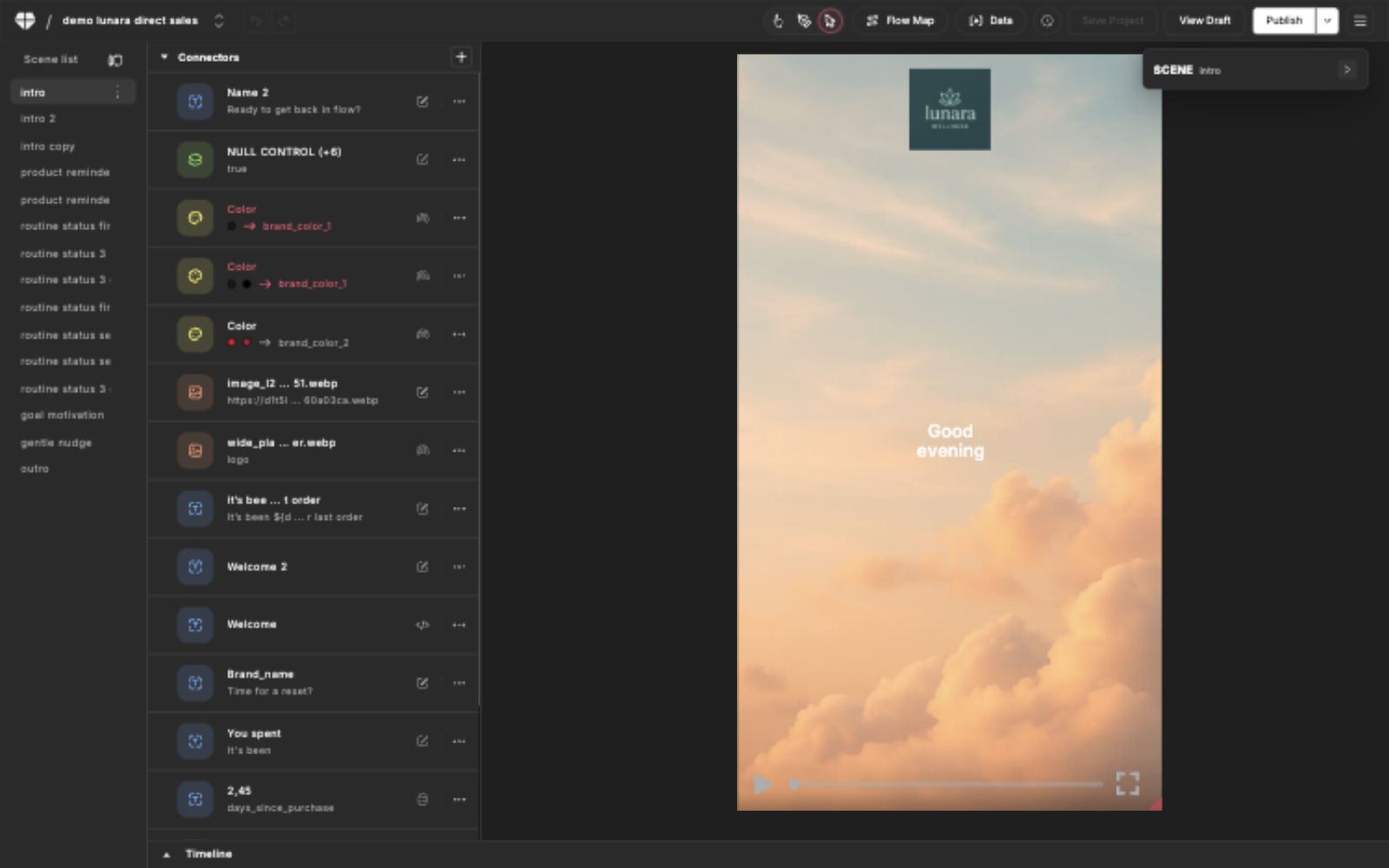
Connectors make Studio layers dynamic. Use them to replace text, media, colors, visibility, timing, scene routing, and viewer interactions with values from Dynamic Data, Live Control, direct edits, or custom expressions.
Connector setup happens in Studio, usually from **Connect mode**. The values a connector uses can be defined in Studio data tools, Platform settings, integration payloads, catalog records, or live controls.
## Before You Start
Confirm these items before adding or changing a connector:
* The scene and layer that should become dynamic.
* The value source: Dynamic Data, Live Control, direct edit, or expression.
* The fallback value to use when the source value is empty.
* Whether Platform users should be allowed to edit the connected value.
* Which preview profile or test data should be used to validate the result.
{% hint style="info" %}
If the data field or live-control value does not exist yet, define it before relying on the connector in previews, simulation, or published delivery.
{% endhint %}
## Connector Types
| Connector | Use it for | Main options to review |
| -------------------------------------------------------------------- | --------------------------------------------------------------------------- | ------------------------------------------------------------------------------------------- |
| [Text Connector](/apps/blings-studio/connectors/text-connector.md) | Dynamic copy, names, labels, scripts, and text variants. | Source value, fallback, template text, resize trigger, casing, alignment, Platform editing. |
| [Media Connector](/apps/blings-studio/connectors/media-connector.md) | Dynamic images, logos, videos, and audio. | Source asset, supported format, fit or crop behavior, duration handling, fallback media. |
| [Color Connector](/apps/blings-studio/connectors/color-connector.md) | Dynamic shape colors, text colors, and brand colors. | Target color, HEX value, source field, fallback color, contrast check. |
| [Layer Hide](/apps/blings-studio/connectors/layer-hide.md) | Showing or hiding layers by data, manual setting, or logic. | Target layer, hidden state, data condition, default state, preview states. |
| [Countdown](/apps/blings-studio/connectors/countdown.md) | Countdown displays for launches, offers, events, and deadlines. | Date source, time units, live seconds, time-zone behavior, conditional layers. |
| [Expression](/apps/blings-studio/connectors/expression.md) | Custom JavaScript logic for values or interactions. | Code, input values, fallback behavior, preview coverage. |
| [Input Field](/apps/blings-studio/connectors/input-field.md) | Viewer-entered text inside the MP5 experience. | Field name, placeholder, single-line or multiline input, empty state, preview behavior. |
| [Submit Form](/apps/blings-studio/connectors/submit-form.md) | Form submission from a viewer action. | Submit layer, captured fields, storage method, custom handling, success state. |
| [Open Link](/apps/blings-studio/connectors/open-link.md) | Clickable actions that open a URL, email, phone action, or generated link. | Trigger layer, link source, protocol, fallback URL, tracking and target behavior. |
| [Jump to Frame](/apps/blings-studio/connectors/jump-to-frame.md) | Interactive jumps within the same scene. | Trigger layer, target frame, source mode, fallback behavior. |
| [Branch Timeline](/apps/blings-studio/connectors/branch-timeline.md) | Interactive routing to another scene or timeline path. | Trigger layer, target scene, entry point, path sequence, validation. |
| [Scene Offset](/apps/blings-studio/connectors/scene-offset.md) | Start a scene or route at a specific offset in the timeline. | Target scene, offset value, source mode, fallback timing, path validation. |
| [Custom Change](/apps/blings-studio/connectors/custom-change.md) | Data-driven changes to a layer value, keyframe path, or animation property. | Target layer, code path, input value, fallback behavior, preview states. |
| [Advanced Config](/apps/blings-studio/connectors/advanced-config.md) | Text rendering configuration such as right-to-left and Arabic handling. | Target text, language behavior, preview language, fallback layout. |
| [Player Events](/apps/blings-studio/connectors/player-events.md) | Custom code triggered by player lifecycle events. | Event trigger, code behavior, repeated playback, analytics and form impact. |
## How Connector Values Are Chosen
Most connectors use the same value model, although each connector exposes only the options that apply to its behavior.
| Value option | What it means | Use it when |
| ---------------- | ---------------------------------------------------------------------- | ------------------------------------------------------------------------------------------------------------------------------------------ |
| **Data** | The connector reads a field from the project Dynamic Data schema. | The value changes per viewer, CRM record, URL token, SDK payload, spreadsheet row, or catalog item. |
| **Edit** | The connector uses a value entered directly in Studio. | The value should be set once in the project instead of supplied per viewer. |
| **Expression** | The connector uses custom JavaScript to calculate or trigger behavior. | The logic cannot be represented by a simple field or edit value. |
| **Live Control** | The connector reads a shared project control value. | Operators need to change a shared value such as a brand color, logo, offer text, or campaign setting without changing every viewer record. |
## Common Connector Options
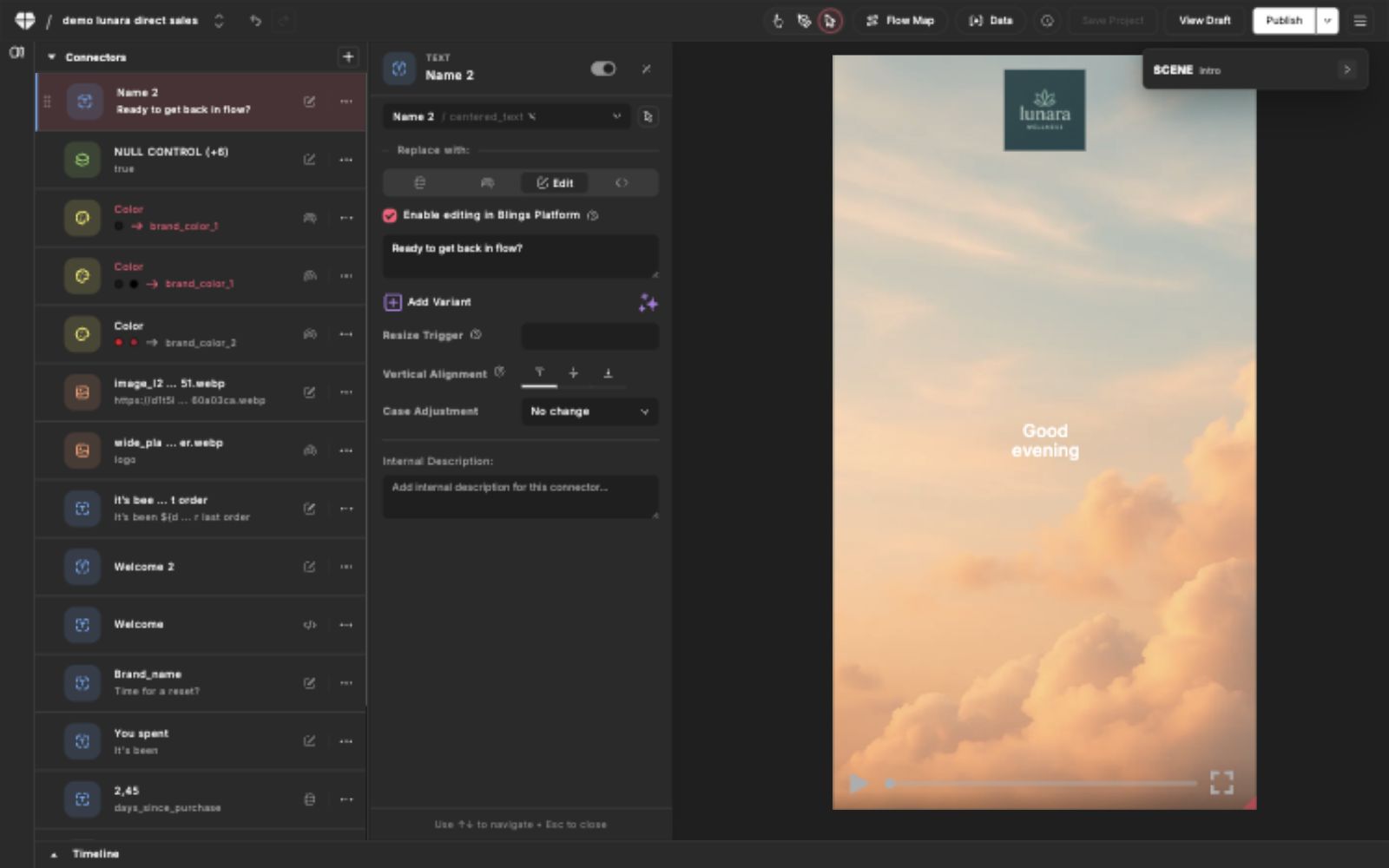
Connector detail panels vary by connector type, but commonly include:
* **Layer or target**: the selected Studio layer, text object, media asset, color, button, frame, or scene path affected by the connector.
* **Source value**: the Dynamic Data field, Live Control value, edit value, or expression used by the connector.
* **Default or fallback**: the value used when runtime data is missing, empty, invalid, or not available in preview.
* **Platform editing**: whether the connected value appears in Platform Edit Content for business users.
* **Variants or states**: alternate values, branches, hidden states, or routes that should be tested before publishing.
* **Internal description**: an operator-facing note that explains what the connector controls.
## Configure a Connector
{% stepper %}
{% step %}
### Open the Scene
Select the scene that contains the layer, asset, color, interaction, or timing behavior you want to control.
{% endstep %}
{% step %}
### Switch to Connect Mode
Use Connect mode to show the connector list and inspect existing bindings before adding a new one.
{% endstep %}
{% step %}
### Choose the Connector Type
Pick the connector that matches the layer behavior: text for copy, media for assets, color for visual colors, layer hide for visibility, or an interaction connector for viewer actions.
{% endstep %}
{% step %}
### Select the Value Source
Choose Data, Edit, Expression, or Live Control when the connector supports that option. Confirm the field name, direct value, code, or live-control value resolves in preview.
{% endstep %}
{% step %}
### Set Fallbacks and Editing Access
Add a safe fallback. Enable Platform editing only when Platform users should be able to update the value without changing Studio structure.
{% endstep %}
{% step %}
### Save and Validate
Save the project and preview with representative data. Test edge cases such as long text, missing media, invalid colors, false conditions, and alternate interaction paths.
{% endstep %}
{% endstepper %}
## Success Checks
Before publishing connector changes, confirm:
* The connector targets the intended layer, color, frame, scene, or interaction.
* The source field or control exists in the current data setup.
* Preview data resolves to the expected value.
* Fallback behavior is acceptable when data is missing.
* Text remains readable, media loads, colors meet contrast needs, and hidden layers match the expected state.
* Platform editing is enabled only for values that should be changed from Platform.
* Platform simulation and runtime delivery use the same field names and value types.
{% content-ref url="/pages/DoRrWOqKE9OO3oRujkQS" %}
[Data in Studio](/apps/blings-studio/data.md)
{% endcontent-ref %}
{% content-ref url="/pages/tcTMJOKSy05H4hRxVQ8F" %}
[Data, Catalog, and Forms](/apps/blings-platform/data-catalog-and-forms.md)
{% endcontent-ref %}