> For the complete documentation index, see [llms.txt](https://help.blings.io/llms.txt). Markdown versions of documentation pages are available by appending `.md` to page URLs; this page is available as [Markdown](https://help.blings.io/apps/blings-studio/connectors/input-field.md).
# Input Field
Configure viewer-editable input fields inside an MP5 experience
Use the Input Field connector when viewers should type text directly inside the MP5 experience. Typical uses include names, feedback, quiz answers, survey responses, preference notes, and free-text messages.
Input Field captures the typed value in the player. Use [Submit Form](/apps/blings-studio/connectors/submit-form.md) when the value should be submitted, saved, or sent to another system.
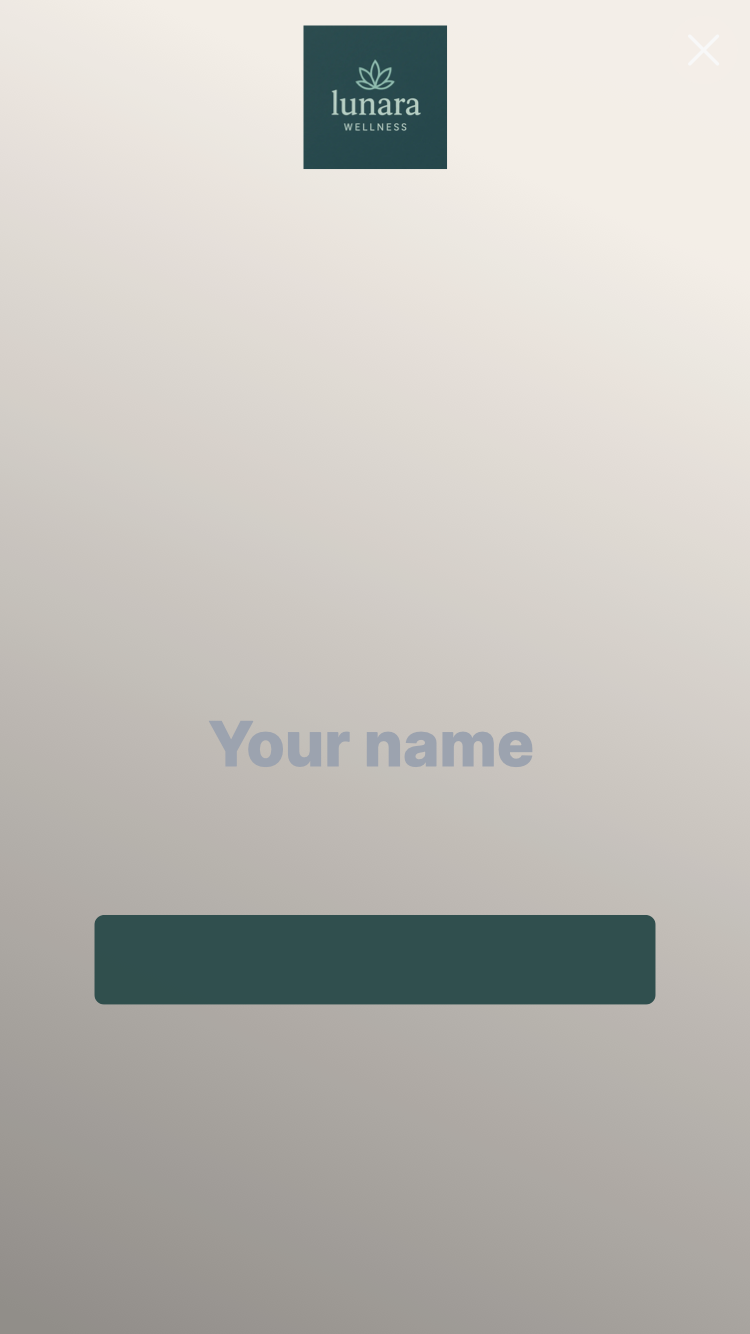
Before typing, the configured input layer shows the placeholder.
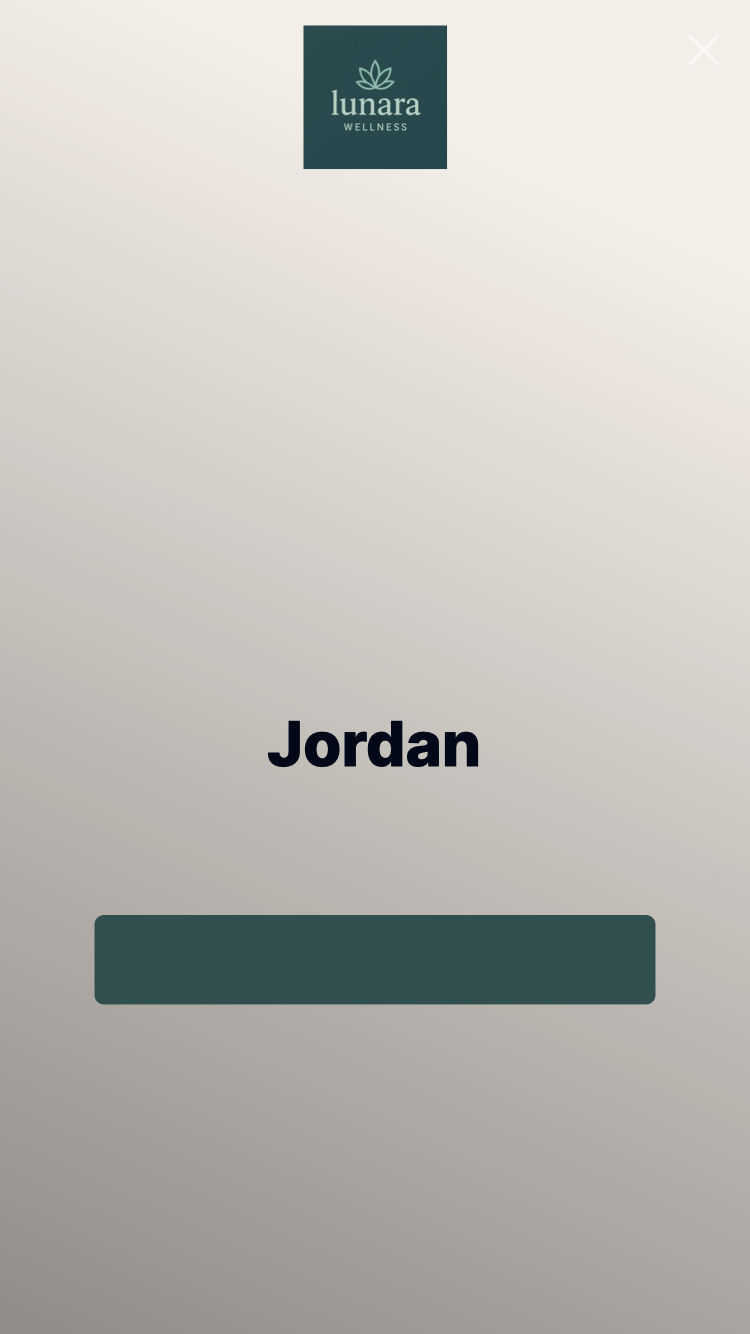
After typing, the entered value appears in the same player layer.
## Options
| Option | What it controls | Notes |
| ------------------------ | ---------------------------------------------------------- | --------------------------------------------------------------------------- |
| **Input text layer** | The text layer that becomes editable by the viewer. | Select the visual layer where the viewer should type. |
| **Field name** | The name used to identify the entered value. | Use a stable name such as `viewer_name`, `email`, or `feedback_message`. |
| **Placeholder** | The prompt shown before the viewer types. | Keep it short and specific, such as `Your name`. |
| **Input mode** | Whether the field accepts a single line or multiple lines. | Use single-line for short answers and multiline for longer messages. |
| **Empty state** | What happens when the viewer leaves the field blank. | Decide whether empty input should be allowed before adding submit behavior. |
| **Text fit** | How typed text fits in the input area. | Preview long values, multiline values, and mobile entry when relevant. |
| **Internal description** | A note explaining what the input collects. | Useful when a scene has several input fields. |
## Configure an Input Field
{% stepper %}
{% step %}
### Select the Text Layer
Choose the text layer that should accept viewer input.
{% endstep %}
{% step %}
### Name the Field
Set the field name that identifies the viewer-entered value.
{% endstep %}
{% step %}
### Add Placeholder Text
Use placeholder copy that tells the viewer exactly what to enter.
{% endstep %}
{% step %}
### Choose the Input Mode
Use single-line input for short values and multiline input for longer messages.
{% endstep %}
{% step %}
### Preview Entry Behavior
Test typing, editing, empty values, long values, and multiline behavior in the player preview.
{% endstep %}
{% endstepper %}
## Success Checks
Before publishing an Input Field connector, confirm:
* The field name is stable and easy to identify.
* Placeholder text fits inside the input area.
* Single-line or multiline behavior matches the expected response.
* Long values do not break the layout.
* Empty input behavior is intentional.
* A Submit Form connector exists when the project needs to capture the entered value.
{% content-ref url="/pages/AL6pMJTwhZVI3krDdmBR" %}
[Submit Form](/apps/blings-studio/connectors/submit-form.md)
{% endcontent-ref %}
{% content-ref url="/pages/DoRrWOqKE9OO3oRujkQS" %}
[Data in Studio](/apps/blings-studio/data.md)
{% endcontent-ref %}