> For the complete documentation index, see [llms.txt](https://help.blings.io/llms.txt). Markdown versions of documentation pages are available by appending `.md` to page URLs; this page is available as [Markdown](https://help.blings.io/role-guides/developer/getting-started/advanced-topics/a-b-test.md).
# A/B test
## A/B testing in Blings MP5 with code
Use this pattern when you want a small code snippet to choose a variant, pass it into the MP5 data fields, mirror it to UTM parameters, and keep the same viewer on the same version after refresh.
This is different from the no-code Flow Map A/B test node. The Flow Map A/B test node splits traffic inside the Flow Map UI. This article covers a code-based assignment pattern that writes a variant into `params.data`, so Studio, Flow Map conditions, and analytics can use that value.
The pattern does four things:
1. Uses a variant from the incoming data or URL when one is provided.
2. Otherwise reuses the variant stored in `localStorage`.
3. Otherwise randomly picks a variant and stores it.
4. Mirrors the variant into a UTM field for analytics and BI reporting.
{% hint style="info" %}
Use one data field per test, such as `abtest1`, `headline_test`, or `offer_variant`. Create the field in the Dynamic Data schema before referencing it in Studio, Flow Map, or reporting.
{% endhint %}
## Add a variant field to the MP5 data schema
In your Blings project, add a Dynamic Data field for the test variant. The examples below use `abtest1`.
Dynamic Data field used by the code-based A/B test.
The field must exist in your video data schema so you can reference it in:
* Flow Map conditions for scene selection.
* Studio connectors for text, media, links, and other content changes.
* Analytics exports and dashboards.
## Full demo code
Copy the code below into **Blings Platform -> Integration -> Advanced** code.
{% content-ref url="/pages/x3JPpFV8w1i0Dwwm10bj" %}
[Integration](/apps/blings-platform/integration.md)
{% endcontent-ref %}
```javascript
// Test #1. You can add multiple tests by calling runStickyABTest again.
runStickyABTest(params, {
testName: "abtest1", // Update with your variable name.
variants: ["10off", "free-trial", "summer-promotion"],
utmSlot: "utm_source" // Pick an available UTM slot, or leave empty.
});
/**
* Blings Sticky A/B Tests
*
* Runs one sticky A/B test.
*
* - If params.data[testName] already exists and is valid, it is saved.
* - Else it reuses localStorage if available.
* - Else it randomly picks one, saves it, and writes it into params.data[testName].
* - Always mirrors the result into params.utmParams[utmSlot] for BI when utmSlot is set.
*/
function runStickyABTest(params, { testName, variants, utmSlot }) {
params = params || {};
params.data = params.data || {};
params.utmParams = params.utmParams || {};
const key = `blings_${testName}`;
const pick = () => variants[Math.floor(Math.random() * variants.length)];
const incomingValue = params.data[testName];
const storedValue = readStoredVariant(key);
const value =
(variants.includes(incomingValue) && incomingValue) ||
(variants.includes(storedValue) && storedValue) ||
pick();
params.data[testName] = value;
writeStoredVariant(key, value);
if (utmSlot) {
params.utmParams[utmSlot] = value;
}
return value;
}
function readStoredVariant(key) {
try {
return localStorage.getItem(key);
} catch (error) {
return null;
}
}
function writeStoredVariant(key, value) {
try {
localStorage.setItem(key, value);
} catch (error) {
// Storage can fail in private browsing or locked-down WebViews.
}
}
```
To run another test, call `runStickyABTest` again with a different `testName` and a different analytics slot:
```javascript
runStickyABTest(params, {
testName: "headline_test",
variants: ["control", "benefit", "urgency"],
utmSlot: "utm_content"
});
```
## How the variant is selected
The helper uses this priority order:
1. If `params.data[testName]` already has a valid variant, it respects that value.
2. If the viewer already has a valid stored value in `localStorage`, it reuses that value.
3. If neither exists, it randomly picks a variant from the list.
This lets you support both deterministic and automatic assignment:
* Use deterministic assignment when a campaign link or backend already chooses the variant.
* Use automatic assignment when the MP5 page should randomize a demo or web-link visitor.
For example, if your integration maps `?abtest1=free-trial` into `params.data.abtest1`, the code will use `free-trial` and store it as the sticky value.
## Save the selected variant on UTM for analytics
To make the selected version visible in analytics, copy the chosen variant into a UTM parameter.
```javascript
runStickyABTest(params, {
testName: "abtest1",
variants: ["10off", "free-trial", "summer-promotion"],
utmSlot: "utm_source"
});
```
After traffic arrives, your dashboards can break down performance by the selected test variant using `utm_source`, or any other UTM field you choose, such as `utm_campaign` or `utm_content`.
{% hint style="warning" %}
Do not reuse the same UTM slot for multiple active tests unless your analytics setup intentionally combines them. Use one UTM slot per test when you need clean reporting.
{% endhint %}
## Stickiness
Without stickiness, the same viewer may see different versions after a refresh. That can break the user experience, make debugging harder, and pollute analytics.
With `localStorage` stickiness:
* The first assigned variant is saved on the viewer's browser.
* Refreshes keep showing the same version.
* A valid incoming variant later overwrites the stored value and becomes the new sticky value.
Important limitations:
* `localStorage` is device and browser specific. A viewer who switches devices or browsers may get a different variant.
* Clearing browser storage resets the assignment.
* If you need the same variant across devices, store the chosen variant in your backend user profile and inject it into `params.data[testName]` on load.
## Where to use the variant inside Blings
Once `params.data.abtest1` is set, you can use it anywhere Dynamic Data is available.
### Scene selection with Flow Map conditions
Use a Flow Map condition when each variant should route viewers into a different scene or path. The code assigns `abtest1`; the Flow Map only reads it as a data condition.
Use a data condition to route by the code-selected variant.
For example:
* `abtest1 is 10off` -> show a discount scene.
* `abtest1 is free-trial` -> show a trial scene.
* `Otherwise` -> show the control path.
For no-code traffic splitting inside Flow Map, use the [Flow Map A/B test node](/apps/blings-platform/flow-map.md#set-up-an-a-b-test) instead.
### Content selection in Studio
Use Studio when the variant should change copy, visuals, links, or other connector values inside the same scene.
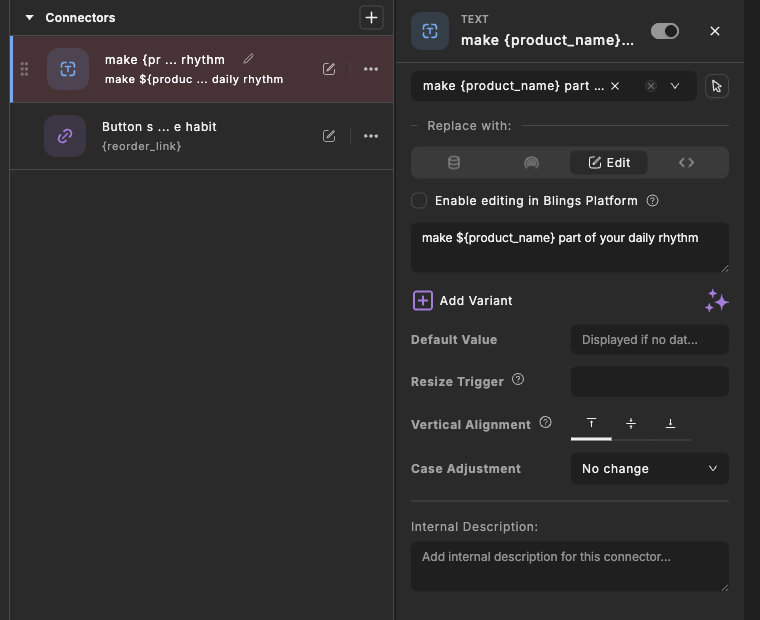
Studio connectors can use the variant data field to drive content changes.
Common examples:
* Show different headline text.
* Swap a product image or offer message.
* Change button text or a CTA link.
* Trigger different JavaScript or connector behavior.
## Verification
Test each variant before launch.
1. Open the MP5 page with an explicit variant value, such as `?abtest1=free-trial`, and confirm the expected content appears.
2. Refresh the page and confirm the same variant remains visible.
3. Open an incognito window, or clear only this test key in the console:
```javascript
localStorage.removeItem("blings_abtest1");
```
Then reload and confirm a variant is assigned again.
Also check your analytics destination and confirm the selected value appears in the UTM field you configured.
## Related documentation
* [Getting Started with Blings.io Dynamic Video SDK](/role-guides/developer/getting-started/getting-started-with-blings.io-dynamic-video-sdk.md)
* [How to connect my data to the video](/role-guides/developer/getting-started/how-to-connect-my-data-to-the-sdk.md)
* [Flow Map](/apps/blings-platform/flow-map.md)